If you are seeing the message “Authorization failed for above host”, it means your app is having trouble communicating with the streaming server. This is a common technical hurdle, and as the team behind IPTV Smarters Pro, we have identified the most effective ways to resolve this quickly.
Follow these troubleshooting steps in order to get your service back up and running.
Step 1: Verify Your Connection Details
The most frequent cause of this error is a minor typo in the login credentials. Even a single extra space can trigger a failure.
-
Check Case Sensitivity: Ensure that uppercase and lowercase letters are exactly as provided by your service.
-
Remove Spaces: Check that your phone or TV didn’t “auto-correct” a space at the beginning or end of your username or password.
-
Server URL: Ensure the URL is typed exactly. Do not add
www.if it wasn’t provided in your original setup email.
Step 2: Modify the Server URL Protocol
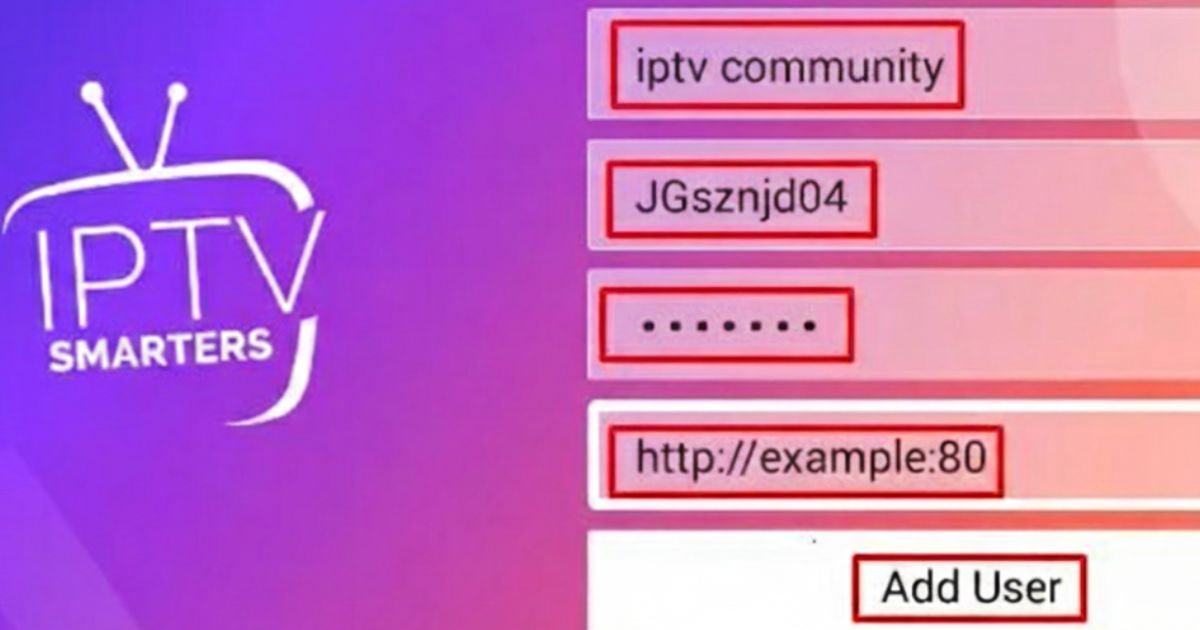
Sometimes the security handshake between your device and the host fails. You can often bypass this by slightly adjusting the URL:
-
Switch to HTTP: If your URL starts with
https://, try changing it tohttp://. Some servers are more stable on the standard protocol. -
The “Double Slash” Fix: Look at the end of your server URL. If there is a trailing slash (e.g.,
...com/), delete it and try logging in again. -
Add a Port Number: If your URL doesn’t have a port at the end, try adding
:80or:8080(for example:http://provider-link.com:80). This helps the app find the specific “door” to the server.
Step 3: Network and DNS Troubleshooting
If your credentials are correct but the host still won’t authorize, your internet service provider (ISP) might be blocking the connection.
-
Toggle Wi-Fi vs. Ethernet: If you are on Wi-Fi, try plugging in an Ethernet cable to see if a more stable connection clears the error.
-
Change to Google DNS: On your Smart TV or Android box settings, change your DNS to 8.8.8.8 or 8.8.4.4. This often bypasses local ISP restrictions and speeds up the “authorization” process.
Step 4: The Clean Reinstall
If the steps above don’t work, the app might have cached “bad data.”
-
Uninstall the IPTV Smarters Pro app from your device.
-
Restart your device (unplug it for 30 seconds).
-
Reinstall the app and enter your details fresh. This clears out any temporary files that might be causing the “Authorization Failed” loop.
Summary Table for Quick Fixes of Authorization failed for above host Error on IPTV Smarters
| Problem | Fix |
| Typo in URL | Remove any extra / at the end of the link. |
| SSL Issues | Change https:// to http://. |
| ISP Blocking | Change DNS to 8.8.8.8. |
| App Glitch | Uninstall and Reinstall the app. |
Expert Note from the Admin: As the owner of IPTV Smarters Pro, I want to ensure you have the best experience. We pride ourselves on offering professional-grade service at a reasonable price. If you have followed all these steps and still cannot connect, it may be an issue with your specific account status or a temporary server outage.
FAQ’s
Q1: How to fix IPTV authorization failed errors if my login details are definitely correct?
A: Check your Server URL for extra slashes at the end and try switching from https:// to http://. These small protocol changes usually resolve handshake issues immediately.
Q2: Can changing my DNS settings help me learn how to fix IPTV authorization failed messages?
A: Yes, changing your device DNS to 8.8.8.8 can bypass ISP blocks that cause authorization errors. This is a highly effective way to restore a blocked connection to the host.
Q3: Why does my Smart TV keep showing an authorization error while my phone works fine?
A: This is often a device-specific cache glitch; the best solution is to uninstall and reinstall the app on your TV. This clears out corrupted data that prevents the host from authorizing your login.
Q4: Is a VPN required when trying to figure out how to fix IPTV authorization failed?
A: A VPN isn’t always required, but it helps if your ISP is actively blocking the streaming server. If the error disappears while using a VPN, it confirms your internet provider was the source of the block.
Q5: What should I do if I’ve followed every step on how to fix IPTV authorization failed and nothing works?
A: At this point, contact your provider to ensure your account is active and the server isn’t down for maintenance. As the owners of IPTV Smarters Pro, we can verify your account status on our backend to solve this.