Struggling with a frozen screen, login loops, or system glitches on your Mag device? Don’t let technical hurdles interrupt your premium entertainment experience. Performing a factory reset on your Mag IPTV Box is the most effective way to clear system errors and restore your device to peak performance, ensuring you get back to your favorite 4K channels and VODs in no time.
Why Your Mag IPTV Box Needs a Reset
As an industry leader in streaming solutions, IPTV Smarters Pro understands that even the most robust hardware like the Mag IPTV Box can occasionally run into software conflicts. Whether you are using a Mag 322, 324, or the classic 254, a factory reset serves as a “fresh start.” This process wipes away cached data and corrupt files that cause buffering or app crashes. By following this expert-verified method, you can resolve most technical issues without needing to contact a technician or buy new hardware.
Mastering the Hard Reset on Your Mag IPTV Box
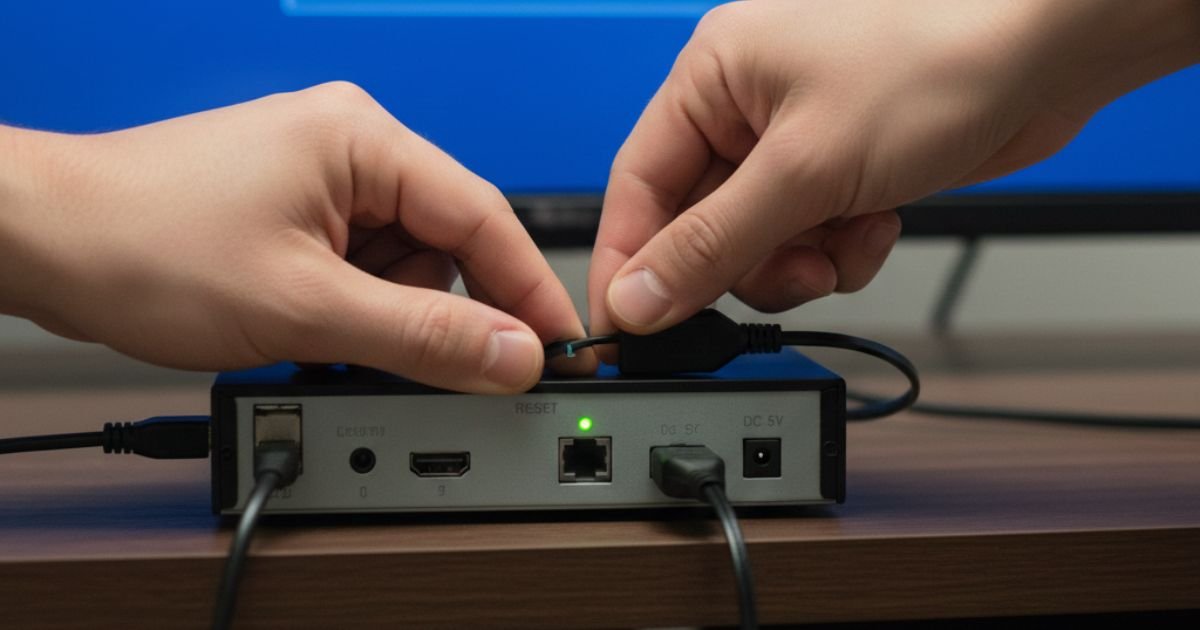
A “hard reset” is different from a simple reboot. It reverts the internal firmware to its original state. Before you begin, IPTV Smarters Pro recommends that you write down your current Portal URL and MAC address, as these will be cleared during the process.
Step 1: Prepare Your Device for the Reset
To ensure the reset is clean and uninterrupted, follow these preparation steps:
-
Disconnect the Internet: Unplug the Ethernet cable or disable your Wi-Fi router temporarily. This prevents the box from trying to update or connect to a portal mid-reset.
-
Locate the Reset Button: Most Mag models have a small physical button located on the back or side of the unit.
Step 2: The Physical Reset Procedure
This “button-hold” method is the most reliable way to access the BIOS-level reset screen:
-
Power Down: Unplug the power cable from the back of your Mag IPTV Box.
-
Hold and Power Up: Press and hold the reset button. While keeping it pressed, plug the power cable back in.
-
Watch the Lights: Do not let go of the button until you see the LED on the front of the box start to flash.
-
Enter the Menu: Once it flashes, release the button quickly and then press it one more time. Your TV screen should turn blue, indicating you have entered the system menu.
Essential Post-Reset Configurations
Once your Mag IPTV Box has finished its reboot, there are a few critical settings to adjust before you re-enter your subscription details.
Disabling Auto-Updates for Stability
Before reconnecting to the internet, navigate to the system settings. It is often recommended to disable certain automatic update triggers to prevent the box from locking or becoming incompatible with your current service provider settings.
Reconnecting Your Service
After the settings are optimized:
-
Reconnect your Ethernet cable or log back into your Wi-Fi.
-
Go to Portals and re-enter the URL provided by your service provider.
-
Ensure your MAC address is still active on your provider’s dashboard.
Troubleshooting FAQ for Mag Users
Q: Will a factory reset delete my paid subscription?
A: No. Your subscription is linked to your device’s MAC address at the server level. However, a reset will delete the Portal URL from the box, so you must re-enter it manually.
Q: My screen didn’t turn blue; what happened?
A: This usually means the timing of the button press was slightly off. Unplug the Mag IPTV Box and try the sequence again, ensuring you hold the button before the power is applied.
Q: Can I use IPTV Smarters Pro on my Mag Box?
A: While Mag boxes use a dedicated portal system, IPTV Smarters Pro is the perfect companion app for your mobile devices, tablets, and Smart TVs, allowing you to take your subscription with you when you aren’t using your Mag hardware.
For more technical guides and the most stable US-based streaming plans, visit our homepage at iptvsmarterspro-usa.com.