Imagine this: the championship match is in its final minutes, your family is gathered around for a movie night, or you’re hosting a high-stakes viewing party. Suddenly, the screen freezes, a “Playback Error” pops up, or the EPG simply refuses to load. These technical glitches don’t just interrupt a show; they ruin those precious moments of connection and excitement. Whether it’s a login failure during a live event or the app crashing right before a family function, we know how frustrating it is when your entertainment gateway slams shut.
Your Entertainment, Our Priority
Welcome to the definitive guide on resolving IPTV Smarters Pro errors. In the world of digital streaming, technical hiccups are the only thing standing between you and world-class content. At IPTV Smarters Pro, we don’t just provide a service; we provide a premium experience. Our business is built on the foundation of high-performance servers and crystal-clear 4K quality, designed specifically for our American audience who demands the best in live sports and cinema. However, even the best technology can sometimes face local device or network conflicts, and that is exactly why this guide exists.
We Are Obsessed With Your Seamless Viewing
At IPTV Smarters Pro, we are deeply curious about the challenges our audience faces. We don’t just ignore “Error” reports—we analyze them. Our team is constantly monitoring server health and app compatibility to ensure you stay connected. We pride ourselves on being available 24 hours a day to resolve issues in the fastest way possible. Your satisfaction isn’t just a goal; it’s our standard. If you’re facing a hurdle, consider us your personal technical pit crew, ready to get you back in the race.
8 Common IPTV Smarters Pro Problems & Their Deep Solutions
1. “Playback Error” or “Streaming Failed”
This is the most common issue where the video simply won’t start.
-
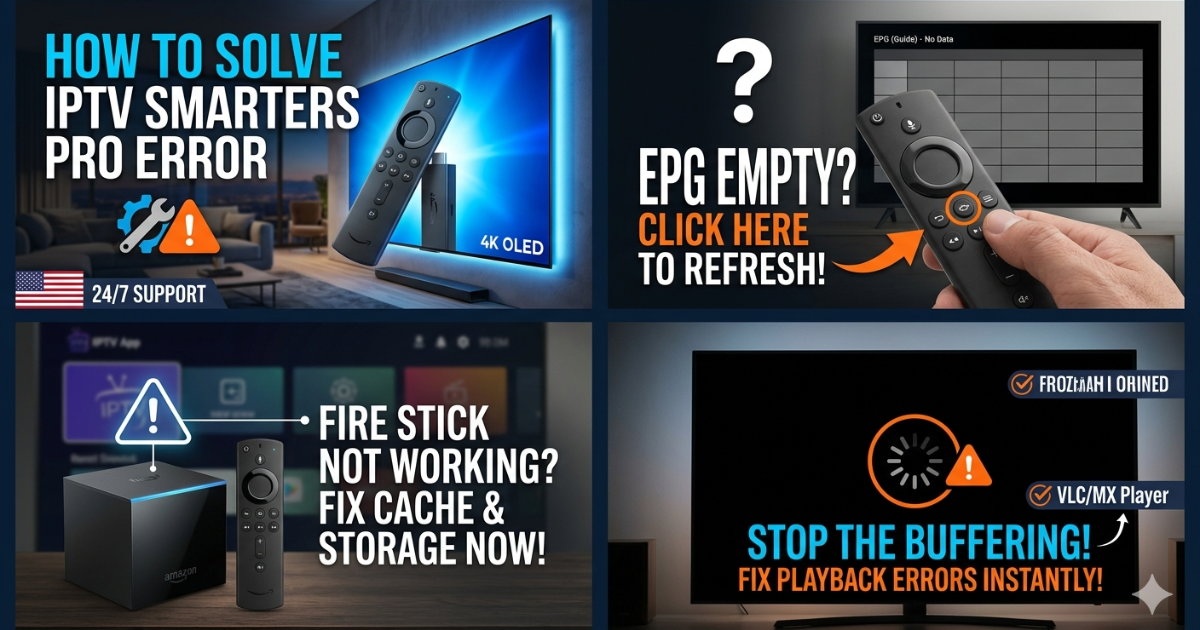
The Solution: First, check your internet speed; 4K streaming requires at least 25 Mbps. If speed is fine, go to Settings > External Players and try switching to VLC or MX Player. Often, the built-in player lacks a specific codec that an external player can easily handle.
2. EPG (Electronic Program Guide) Not Loading
You can see the channels, but the “What’s On” info is blank.
-
The Solution: Go to the App Settings and select “Refresh EPG.” If that fails, clear the app cache. In some cases, deleting the EPG source URL and re-entering it forces the app to pull a fresh data packet from our high-speed servers.
3. IPTV Smarters Pro Not Working on Firestick
Amazon Firesticks are prone to “low memory” errors that cause the app to hang.
-
The Solution: Go to Firestick Settings > Applications > Manage Installed Applications > IPTV Smarters Pro. Select “Force Stop” and then “Clear Cache.” If it still won’t open, ensure “Install Unknown Apps” is still toggled ON in Developer Options, as system updates sometimes reset this.
4. “Invalid Login” or “Authentication Failed”
You are sure your password is correct, but it won’t let you in.
-
The Solution: This is often a “case-sensitive” or “hidden space” issue. Carefully re-type your Xtream Codes API details. Ensure there is no space at the end of the Server URL. If you are using a VPN, try turning it off or switching to a US-based server, as some IP ranges may be temporarily flagged by security protocols.
5. M3U Playlist Not Loading
The app stays stuck on the “Downloading Channels” bar.
-
The Solution: This usually happens when the playlist is too large for the device’s RAM. Instead of using the full M3U link, use the Xtream Codes API (Username/Password/URL). It is much lighter and loads significantly faster on smart TVs and Firesticks.
6. App Crashing or Freezing Frequently
The app closes itself during navigation.
-
The Solution: This is likely a firmware conflict. Check for an app update on our official site. If you are updated, perform a “Hard Reset” on your TV or Box by unplugging the power cord for 60 seconds. This clears the hardware’s temporary memory (RAM) better than a simple remote restart.
7. Sound but No Video (Black Screen)
You can hear the commentators, but the screen is pitch black.
-
The Solution: This is a hardware acceleration issue. Go to Settings > Player Settings and change the decoder from “Hardware” to “Software” (or vice versa). This tells the app to use a different method to render the video frames.
8. “No Network Detected” (Even with Wi-Fi connected)
The app acts as if there is no internet.
-
The Solution: Your router’s firewall or ISP might be blocking the port. Try toggling your VPN ON to bypass ISP throttling. If you aren’t using a VPN, restart your router. Switching from a 2.4GHz to a 5GHz Wi-Fi band often solves this “ghost” connection issue.
Conclusion
Technical errors are a part of the digital age, but they shouldn’t be a part of your weekend. By following these deep-dive solutions, you can fix 99% of IPTV Smarters Pro issues in minutes. Remember, our platform is engineered for stability, and we are here 24/7 to ensure your “Uptime” remains at 100%. Stay updated, keep your cache clear, and enjoy the best IPTV experience in the USA.
FAQs
Q: Do I need a VPN to fix playback errors?
A: Not always, but if your ISP is throttling your speed during “peak hours” (like big games), a VPN can provide a smoother, unblocked path.
Q: Why does my Firestick struggle with 4K content?
A: Ensure your Firestick is a 4K model and that you have cleared enough storage space (at least 1GB free) for the app to buffer the video properly.
Q: How often should I refresh the EPG?
A: We recommend refreshing once every 24 hours to ensure you have the most accurate timing for live events and new movie releases.