Are you tired of being limited by your local cable provider and want a more personalized streaming experience? If you’re looking for a seamless way to enjoy your favorite live TV, movies, and series, then you’re in the right place! In this guide, we’ll walk you through the process of setting up an M3U playlist in the Smarters Pro app, so you can start enjoying a world of entertainment right at your fingertips.
Unleash the Power of IPTV Smarters Pro with an M3U Playlist
IPTV Smarters Pro is a versatile and user-friendly application that allows you to access a wide range of content through various IPTV providers. One of the most common and flexible ways to connect to these services is through an M3U playlist. An M3U is essentially a file or URL that contains information about different streaming channels and content. By integrating an M3U playlist into the Smarters Pro app, you can easily access your preferred IPTV service and enjoy high-quality streaming on your device.
Step-by-Step Guide: How to Set Up M3U Playlist in Smarters Pro
Setting up an M3U playlist in Smarters Pro is a straightforward process. Follow these simple steps to get started:
- Open the Smarters Pro App: Launch the Smarters Pro app on your device. If you haven’t already, you can download it from your device’s app store.
- Select “Login with M3U URL”: Once the app is open, you’ll see several login options. Choose the one that says “Login with M3U URL”.
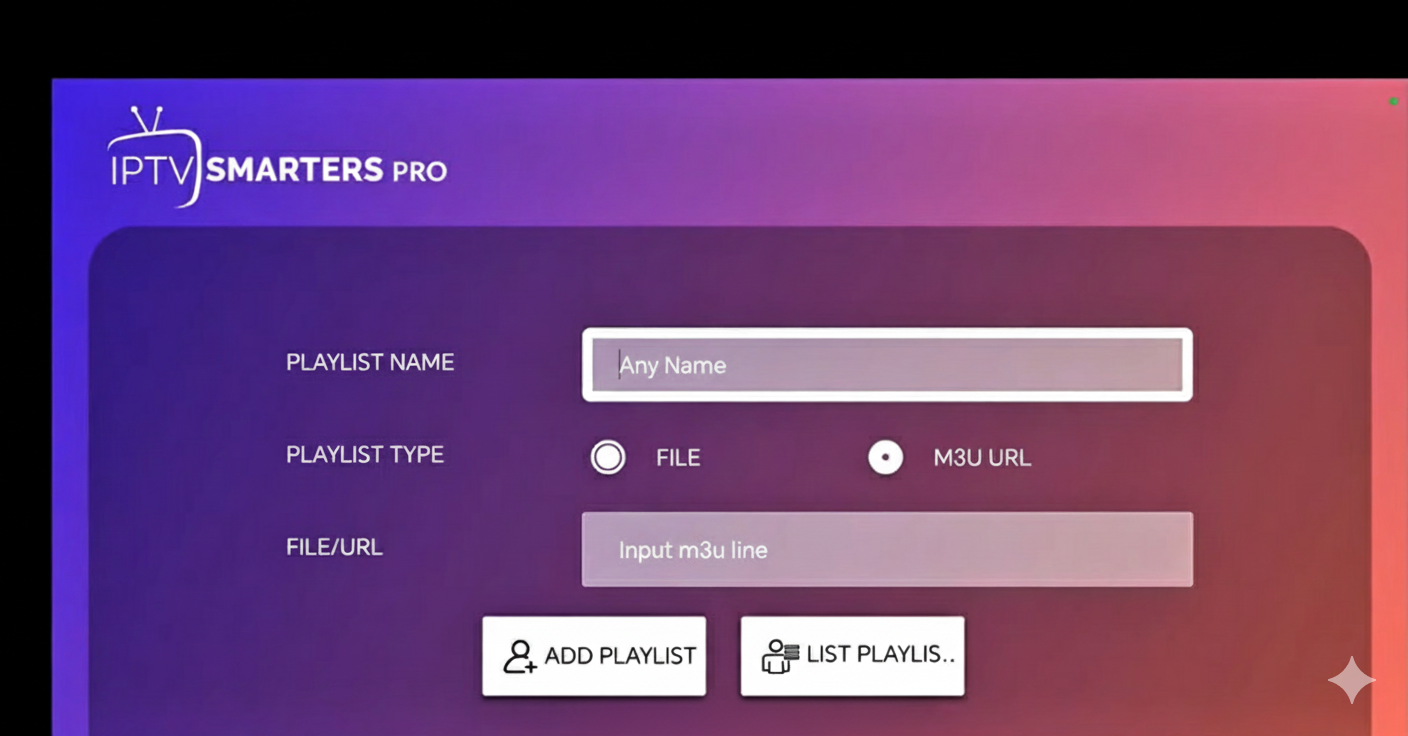
- Enter Playlist Details:
- Playlist Name: In the first field, you can enter any name you like for your playlist. This can be something simple like “My Playlist” or your provider’s name.
- M3U URL: Paste your M3U playlist URL into the designated field. Make sure the URL is correct and ends with .m3u or .m3u8.
- EPG Link (Optional): If your provider has an EPG link, you can add it here as well, although it’s not required.
- Login/Add User: After entering the necessary information, click “Add User” or “Login” to continue.
- Wait for Content to Load: The app will then download your channels, movies, and series. This may take a few seconds depending on the size of your M3U playlist.
- Start Watching: Once the content has loaded, you’ll see different categories like live TV, movies, and series. Simply choose your favorite category and start watching!
Experience Premium Streaming with IPTV Smarters Pro
By following these simple steps, you can easily set up and enjoy your favorite content using an M3U playlist on the Smarters Pro app. Whether you’re interested in live sports, the latest movies, or popular TV shows, IPTV Smarters Pro provides a convenient and high-quality streaming experience. So, grab your M3U playlist and start exploring the world of IPTV today!
Frequently Asked Questions (FAQs)
Q: What if my M3U playlist URL doesn’t work?
A: Double-check that you’ve entered the URL correctly and that it ends with .m3u or .m3u8. If it still doesn’t work, contact your IPTV provider to ensure the link is active and valid.
Q: Can I use multiple M3U playlists with Smarters Pro?
A: Yes, you can add multiple M3U playlists to the Smarters Pro app by following the setup process for each one.
Q: Do I need an EPG link for my M3U playlist?
A: While an EPG link is not required, it can enhance your experience by providing program guides and information for your channels.
I hope this article helps you provide your users with a clear and engaging guide on how to set up an M3U playlist on IPTV Smarters Pro. Let me know if you have any other questions or if there’s anything else I can do for you!