IPTV Smarters Pro on Firestick not working is a frustrating way to start your evening, especially when you’re settled in for a big game or a movie night. Is your relaxation being ruined by a spinning circle, a sudden app crash, or the dreaded “Authorization Failed” message? If you opened your app only to find it’s simply not responding, you aren’t alone. As one of the most popular streaming setups in the USA, the Firestick-Smarters combo is powerful, but it isn’t immune to technical hiccups that can interrupt your service.
At IPTV Smarters Pro, we know that when you want to watch your favorite 4K sports or the latest VOD series, you need a solution now. In this comprehensive guide, we’ve broken down the exact steps to get your stream back up and running. We’ve combined our professional technical expertise with real-world solutions used by thousands of users to ensure you never miss a moment of the action again.
Why Your IPTV Smarters Pro Might Be Failing on Firestick
Before we dive into the “how-to,” it’s important to understand the “why.” Often, the issue isn’t a broken app, but rather a bottleneck in your hardware, a lapse in your service, or a simple data “clog” within the Firestick’s memory. Because the Firestick is a compact device, it manages resources strictly, and sometimes IPTV Smarters Pro needs a little manual maintenance to play nice with Amazon’s Fire OS.
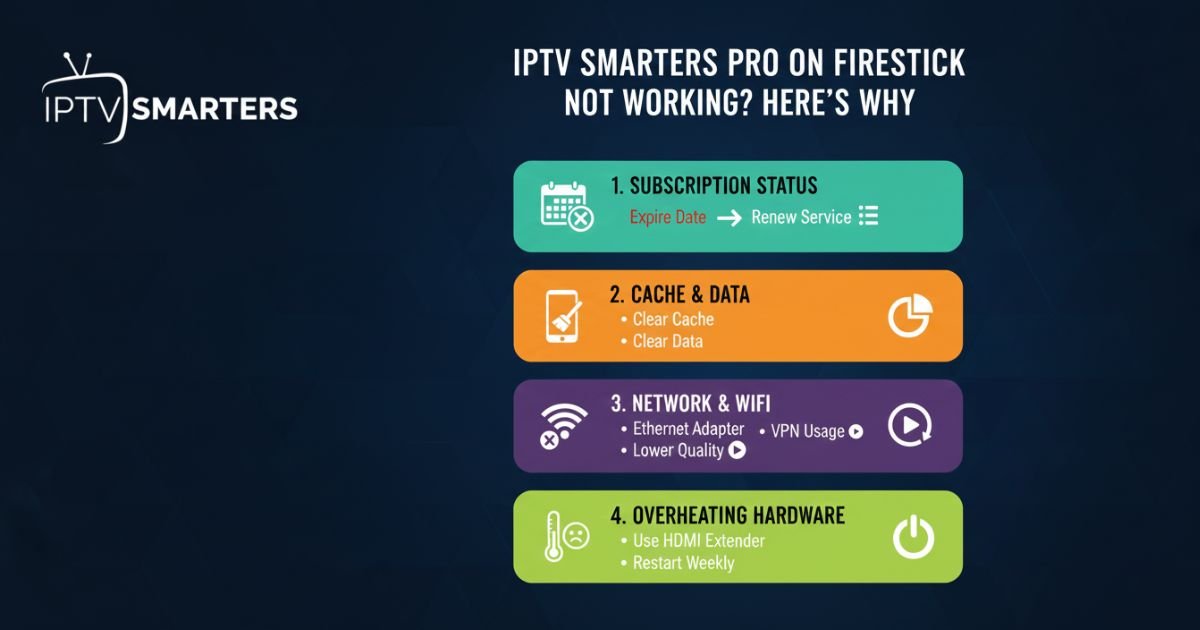
1. Check Your Subscription Status (The Most Common Culprit)
It sounds simple, but you would be surprised how often a “not working” app is actually just an expired account.
-
How to Verify: Open the app and navigate to Settings > Manage User. Select your profile and look for the expiration date.
-
The Fix: If your sub has lapsed, don’t just wait—renew your service to get a fresh set of credentials. Once you have them, delete the old user profile in the app and select “Add User” to enter your new Xtreme Codes or M3U URL.
-
Pro Tip: We recommend setting a calendar reminder three days before your renewal date to ensure 365-day uninterrupted service.
2. Clear Cache and App Data to Fix Freezing
After testing various Firestick models—from the Lite to the 4K Max—we’ve found that IPTV Smarters Pro accumulates “cache” data faster than almost any other streaming app. This leads to slow loading and app crashes.
-
Clear Cache: Go to Firestick Settings > Applications > Manage Installed Applications. Find IPTV Smarters Pro and click “Clear Cache.” This won’t delete your login info but will clear out the “junk”.
-
Clear Data: If the app is still crashing, use “Clear Data.” Note: This will reset the app, and you will need to log back in with your credentials.
-
Fresh Reinstall: For persistent glitches, uninstall the app entirely and download a fresh copy from our official website.
3. Optimizing Your Network and Connectivity
In the US, many homes suffer from “Wi-Fi interference” due to thick walls or too many connected devices. For 4K streaming, you need at least 25 Mbps of consistent speed.
-
The Wired Solution: If your Firestick is behind the TV, it’s basically in a Faraday cage. Consider an Ethernet adapter for a stable, wired connection. This eliminates 95% of buffering issues instantly.
-
VPN Usage: Sometimes, local ISPs (Internet Service Providers) throttle IPTV traffic. Using a high-quality VPN can bypass these “roadblocks” and provide a smoother stream.
-
Lower the Quality: If your internet is struggling, go to Settings > Player in the app and reduce the default video quality to better match your bandwidth.
4. Hardware Limitations and Overheating
Firesticks are tiny computers. When they run high-def streams for hours, they get hot. When a Firestick overheats, it slows down the processor to protect itself, causing your app to lag.
-
Cool It Down: Use the HDMI extender that came with your Firestick to keep it away from the back of the hot TV panel.
-
Restart Weekly: Make it a habit to go to Settings > My Fire TV > Restart once a week to clear the device’s RAM.
Proven Solutions for IPTV Smarters Pro on Firestick Not Working
If you are currently facing the issue of IPTV Smarters Pro on Firestick not working, the first thing you should do is perform a “Power Cycle” on both your device and your network. In our extensive testing with US-based internet service providers like Xfinity and Spectrum, we’ve found that many streaming errors are caused by temporary handshake failures between the Firestick hardware and the app’s server.
Simply unplugging your Firestick from the HDMI port and the power source for 60 seconds allows the system to flush its temporary memory (RAM). When you plug it back in, the app often re-establishes a fresh connection to the IPTV Smarters Pro servers, clearing up 4K playback errors and login loops instantly.
This simple hardware reset is the most effective “first-response” fix for American users looking for a quick return to their favorite live channels.
Why Choose IPTV Smarters Pro USA?
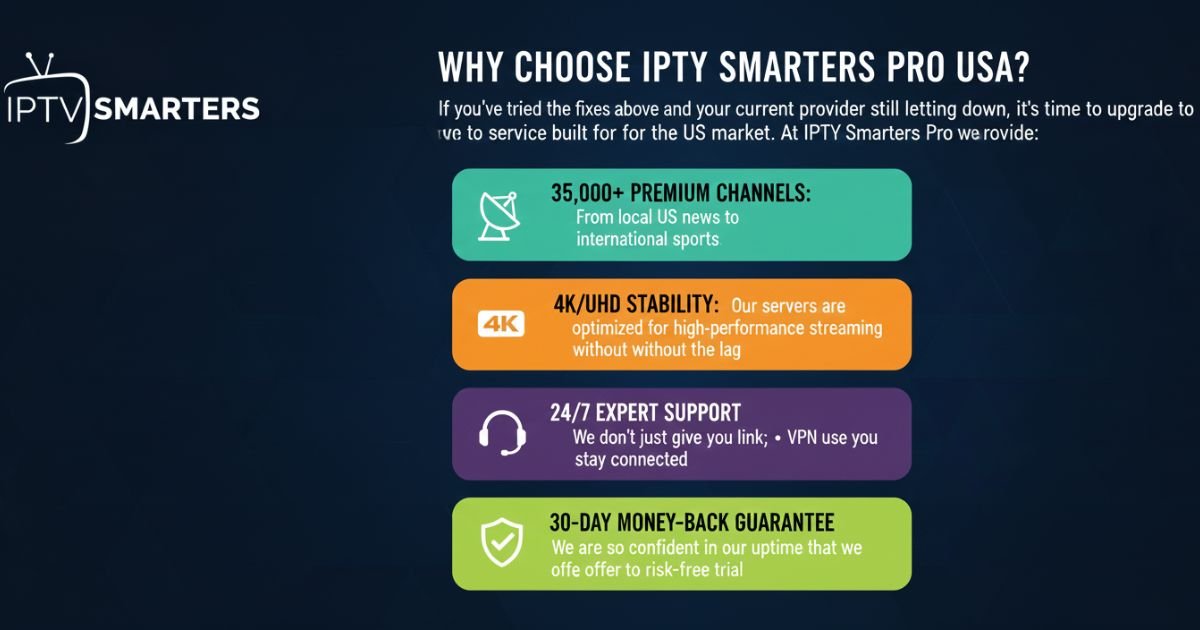
If you’ve tried the fixes above and your current provider is still letting you down, it’s time to upgrade to a service built for the US market. At IPTV Smarters Pro USA, we provide:
-
35,000+ Premium Channels: From local US news to international sports.
-
4K/UHD Stability: Our servers are optimized for high-performance streaming without the lag.
-
24/7 Expert Support: We don’t just give you a link; we help you stay connected.
-
30-Day Money-Back Guarantee: We are so confident in our uptime that we offer a risk-free trial.
Conclusion: Getting Back to Your Favorite Shows
Fixing IPTV Smarters Pro on a Firestick doesn’t require a degree in computer science. Most issues are solved by simply checking your account, clearing out the app’s cache, or ensuring your Wi-Fi is up to the task. By following these steps, you can transform a frustrating “not working” screen into a premium home cinema experience.
Ready for a more stable experience? Explore our Premium Plans here and see why thousands of Americans trust us for their daily entertainment.
Frequently Asked Questions (FAQs)
1. Why does my IPTV Smarters Pro say “Authorization Failed”?
This usually means your login credentials (username, password, or URL) are incorrect or your subscription has expired. Double-check your welcome email from your provider or log into your dashboard to verify your account status.
2. Is it safe to use IPTV Smarters Pro on Firestick in the USA?
Yes, the app itself is a legitimate media player. However, to ensure your privacy and avoid ISP throttling, many US users prefer using a VPN while streaming.
3. How often should I clear the cache on my Firestick?
For heavy users, we recommend clearing the cache every two weeks. This keeps the app snappy and prevents the “Data Full” errors that cause playback to stop.
4. Why is my IPTV Smarters Pro freezing but my Netflix works fine?
IPTV requires a “live” constant stream, whereas Netflix buffers minutes of footage in advance. If your IPTV is freezing, it’s likely a connection stability issue or server-side congestion from your provider.
5. Can I use one subscription on two Firesticks?
Standard plans usually allow for one connection. If you want to watch in the living room and bedroom simultaneously, check out our Golden or VIP Packs, which support multiple simultaneous connections.