Is your IPTV Smarters Pro not working and leaving you frustrated? You’ve settled in for some quality streaming, only to be met with buffering, error messages, or a completely unresponsive app. As the leading media player for IPTV services, IPTV Smarters Pro is incredibly popular across the USA, but even the best apps can hit a snag. Whether you’re seeing a black screen, constant freezing, or difficulty loading channels, these common issues can quickly ruin your entertainment plans.
At IPTV Smarters Pro, we understand that uninterrupted streaming is crucial. We’ve compiled a definitive, expert-backed guide to help you diagnose and fix virtually any problem you encounter. Drawing insights from common user issues and professional troubleshooting, we’ll get your IPTV Smarters Pro back to seamless operation, fast.
Why is Your IPTV Smarters Pro Not Working? Understanding the Core Issues
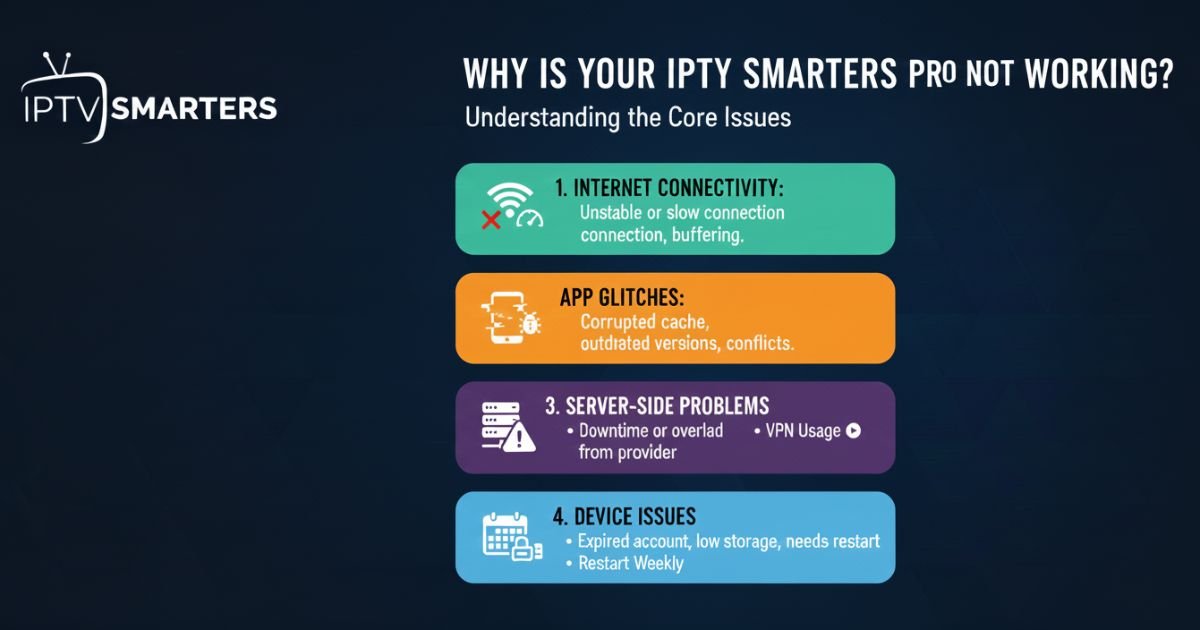
Before we dive into the solutions, let’s explore the typical culprits behind a malfunctioning IPTV Smarters Pro. Knowing the root cause often leads to a quicker fix. Most problems stem from:
-
Internet Connectivity: An unstable or slow internet connection is the number one cause of buffering and loading issues.
-
App Glitches: Corrupted cache, outdated versions, or internal software conflicts within the app.
-
Server-Side Problems: Your IPTV service provider might be experiencing downtime or server overload.
-
Device Issues: Overheating devices (like Firesticks), low storage, or a device in need of a simple restart.
-
Subscription Status: Expired accounts or incorrect login details can prevent access to content.
1. The Essential Power Cycle: Reset Your Entire Setup
When your IPTV Smarters Pro not working, the very first, and often most effective, step is to perform a full power cycle of all your network and streaming devices. Think of it as hitting a “reset” button for your entire home entertainment system. This clears out temporary data, re-establishes connections, and can solve a surprising number of issues.
How to Perform a Full Power Cycle:
-
Unplug Everything: Start by completely unplugging your modem, Wi-Fi router, and your streaming device (Firestick, Android Box, Smart TV, etc.) from their power outlets.
-
Wait 60 Seconds: This is crucial. Don’t rush it. Give all devices at least a full minute to discharge any residual power.
-
Plug In Your Modem First: Reconnect your internet modem and wait until all its indicator lights are stable (usually green and no longer blinking). This confirms your internet connection is re-established.
-
Plug In Your Router Next: Once the modem is ready, plug in your Wi-Fi router and wait for it to fully boot up and establish its own stable connection.
-
Finally, Your Streaming Device: Plug your Firestick or other streaming device back in.
-
Relaunch IPTV Smarters Pro: Once your device is fully restarted, open the IPTV Smarters Pro app. This fresh start often resolves connection errors, loading problems, and even buffering.
2. Optimizing Your Internet: Stable 4K Servers and Connection Checks
A robust internet connection is paramount for a smooth IPTV Smarters Pro experience, especially for 4K content. If your IPTV Smarters Pro not working due to constant buffering or freezing, your internet speed or stability is a likely culprit.
Ensuring a Stable Connection:
-
Speed Test: Use an app like “Analiti” on your Firestick or visit Speedtest.net on another device connected to the same Wi-Fi. For reliable 4K streaming, you need a consistent download speed of at least 25-50 Mbps.
-
Ethernet Adapter: For ultimate stability, particularly for Firestick users, a USB Ethernet adapter is a game-changer. Wi-Fi can be unreliable due to interference, distance from the router, and other devices. A wired connection bypasses these issues completely .
-
VPN Usage: In the US, some ISPs are known to throttle internet speeds for certain types of streaming, including IPTV. A VPN (Virtual Private Network) encrypts your traffic and can bypass these limitations, often leading to a smoother, buffer-free experience.
-
Reduce Network Load: If multiple devices are actively streaming, gaming, or downloading on your home network, it can strain your bandwidth. Try pausing other activities while using IPTV Smarters Pro.
3. Resolving App-Specific Glitches: Cache, Data, and Force Stop
Over time, apps accumulate “cache” and “data” files. While cache is meant to speed things up, too much of it, or corrupted files, can make IPTV Smarters Pro not working as expected. This is a common fix for freezing, lagging, or the app refusing to open.
Clearing Cache and Data:
-
Go to Device Settings: On your Firestick or Android device, navigate to Settings > Applications > Manage Installed Applications.
-
Find IPTV Smarters Pro: Scroll down and select IPTV Smarters Pro.
-
Force Stop: First, select “Force Stop.” This immediately closes the app, ensuring it’s not running in the background. This alone can sometimes fix minor glitches.
-
Clear Cache: Next, select “Clear Cache.” This removes temporary files without deleting your login information. Test the app after this step.
-
Clear Data (Use with Caution): If clearing the cache doesn’t work, you might need to “Clear Data.” IMPORTANT: This will reset the app to its factory state, deleting your login information and any customized settings. You will need to re-enter your username, password, and server URL from your IPTV Smarters Pro provider. This is often the nuclear option for stubborn app issues.
4. Subscription & Login Issues: The “Authorization Failed” Dilemma
One of the most common reasons IPTV Smarters Pro not working is related to your subscription. If you see messages like “Authorization Failed,” “Login Error,” or simply no channels loading, it’s time to check your credentials.
Verifying Your Subscription:
-
Check Expiration: Contact your IPTV Smarters Pro provider or log into their portal to confirm your subscription is active and not expired. Many services send reminders, but these can be missed.
-
Correct Credentials: Double-check your username, password, and the server URL (sometimes called “Host” or “Portal URL”). A single typo can prevent access. For Xtreme Codes, ensure all three fields are correct.
-
Reset User: Within the IPTV Smarters Pro app, if you suspect an issue with your profile, go to Settings > User. You might need to “Add User” and re-enter your details, or even delete the existing user and add a fresh one.
5. Device-Specific Optimizations: Firestick, Android, and More
While IPTV Smarters Pro runs on various devices, each has its quirks. If your IPTV Smarters Pro not working specifically on a Firestick or Android box, these tips are for you.
Firestick/Android Device Health:
-
Storage Space: Low storage can cripple app performance. On Firestick, go to Settings > My Fire TV > About > Storage. Uninstall unused apps or clear data from others to free up space.
-
System Updates: Ensure your Firestick or Android device’s operating system is up to date. Go to Settings > My Fire TV > About > Check for Updates. Outdated firmware can cause compatibility issues.
-
Avoid Overheating: If your device feels hot, it’s probably throttling performance. Use the HDMI extender that came with your Firestick to move it away from the TV’s vents. Give it breaks, especially during long streaming sessions.
-
App Permissions: On Android devices, ensure IPTV Smarters Pro has necessary permissions (e.g., storage access). Go to App Info > Permissions.
Still Having Trouble? The IPTV Smarters Pro USA Advantage
If you’ve systematically worked through all these steps and your IPTV Smarters Pro inot working as it should, it might be time to consider a more robust and reliable IPTV service. Many providers offer cheap services but lack the server infrastructure and dedicated support needed for a consistent, high-quality streaming experience.
At IPTV Smarters Pro, we pride ourselves on delivering:
-
Premium, Stable Servers: Optimized specifically for the US market, ensuring minimal buffering and maximum uptime, even for 4K content.
-
Extensive Channel Lineup: Access to 35,000+ premium channels and a massive VOD library.
-
Dedicated 24/7 Support: Our team is always ready to assist you with any technical issues, making sure you stay connected.
-
User-Friendly Setup: Seamless integration with IPTV Smarters Pro for a hassle-free experience.
-
Risk-Free Guarantee: A 30-day money-back guarantee because we’re confident in our service.
Don’t let “IPTV Smarters Pro not working” ruin another evening. Upgrade to a service designed for performance and reliability.
Get Back to Seamless Streaming
While it can be frustrating when IPTV Smarters Pro not working, most issues are resolvable with a few systematic troubleshooting steps. By understanding common problems related to connectivity, app data, device health, and subscription status, you can empower yourself to fix most issues quickly. Remember the power cycle, clear your cache, and always ensure your internet is up to the task.
If you’re constantly fighting with your current provider, a switch to a high-quality service like IPTV Smarters Pro can eliminate these headaches, providing you with the reliable, premium streaming experience you deserve.
Frequently Asked Questions (FAQs)
1. Why does my IPTV Smarters Pro keep saying “Login Failed”?
This typically means your username, password, or the provided server URL is incorrect. Double-check the credentials you received from your IPTV provider. If they’re correct, try clearing the app’s data (which will require re-entering them).
2. Can using a VPN fix “IPTV Smarters Pro not working” issues?
Yes, a VPN can often help. Some internet service providers (ISPs) in the US might throttle or block certain types of internet traffic, including IPTV. A VPN can bypass these restrictions, improving stability and reducing buffering.
3. How often should I “Clear Cache” on IPTV Smarters Pro?
For regular users, clearing the cache every 1-2 weeks is a good practice. If you experience frequent freezing or slow loading, try clearing it more often.
4. My 4K channels are buffering, but standard definition works fine. What’s wrong?
This almost always points to an internet speed or stability issue. 4K streaming requires significantly more bandwidth. Ensure your Wi-Fi is strong, or better yet, use an Ethernet connection. Also, verify your provider’s 4K server stability.
5. What’s the difference between “Force Stop,” “Clear Cache,” and “Clear Data”?
-
Force Stop: Simply closes the app immediately.
-
Clear Cache: Removes temporary files without affecting your login or settings.
-
Clear Data: Resets the app to its original, newly installed state, deleting all login information and custom settings. You’ll need to re-enter your credentials.