Looking to Install IPTV Smarters Pro on FireStick? Are you one of the millions of US households looking to break free from expensive cable packages and find a seamless way to manage all your media in one place? The Amazon FireStick is your solution, but finding the perfect media player can be a headache—especially since the best one, IPTV Smarters Pro, isn’t on the Amazon App Store.
The struggle is real: constant buffering, a disorganized channel list, and the fear of streaming unprotected. But what if there was a simple, secure, and fast method?
This guide provides the complete, step-by-step process on how to install IPTV Smarters Pro on FireStick and immediately sets you up with the ultimate media player, transforming your streaming experience in under 10 minutes.
Part 1: Setting Up Your FireStick for Sideloading
The installation of a third-party app like IPTV Smarters Pro requires a technique known as “sideloading,” which Amazon blocks by default. Follow these steps to prepare your device.
Step 1: Enable Developer Options
On newer FireStick models, the necessary setting is initially hidden.
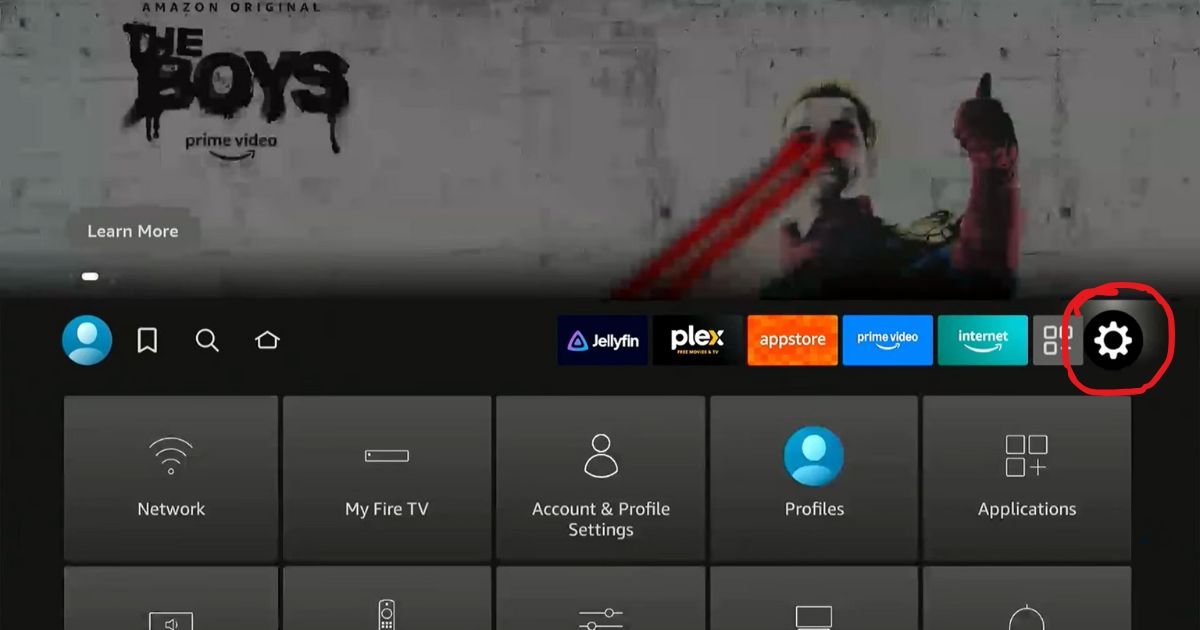
- Navigate to your FireStick’s Settings (the gear icon ⚙️) from the home screen.
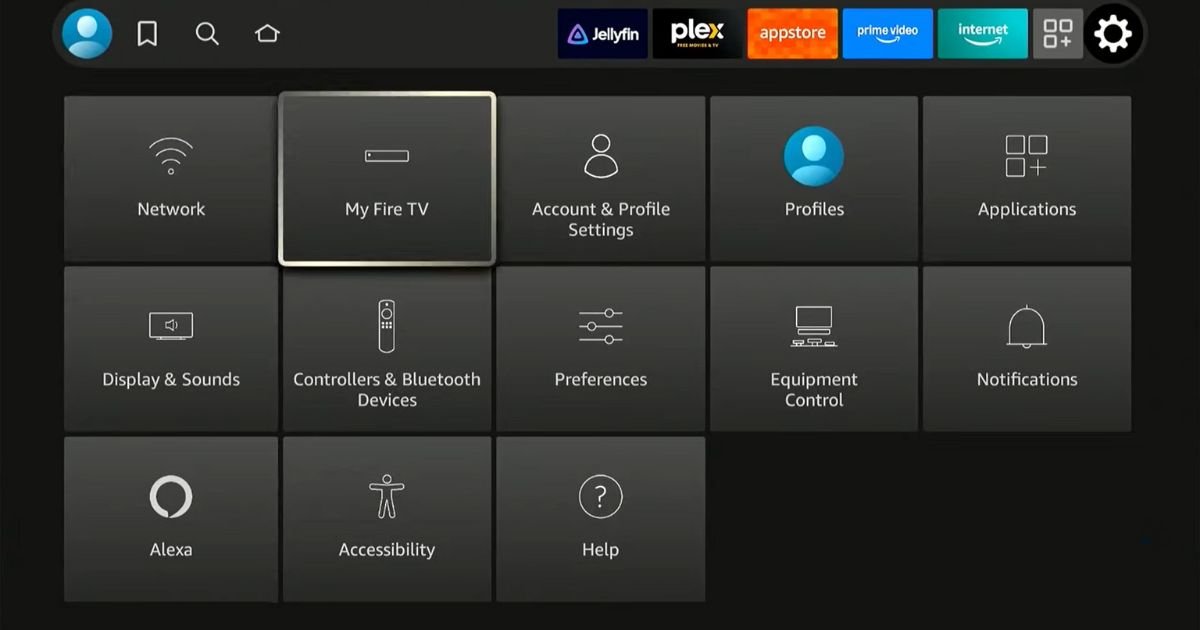
- Select My Fire TV.
- Click on About.
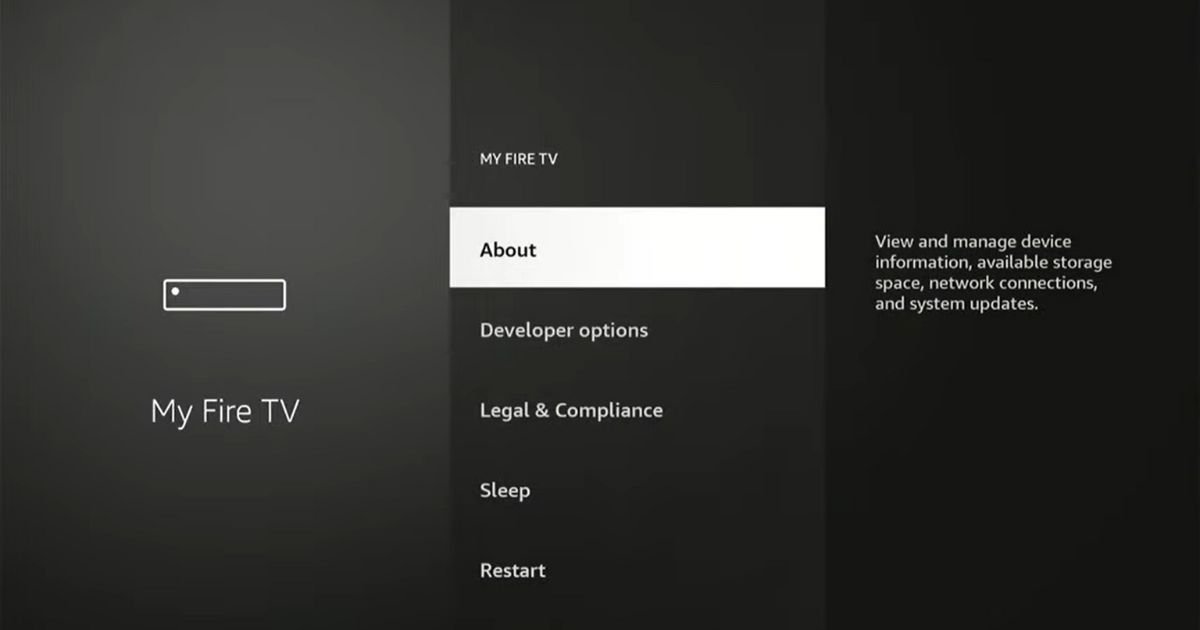
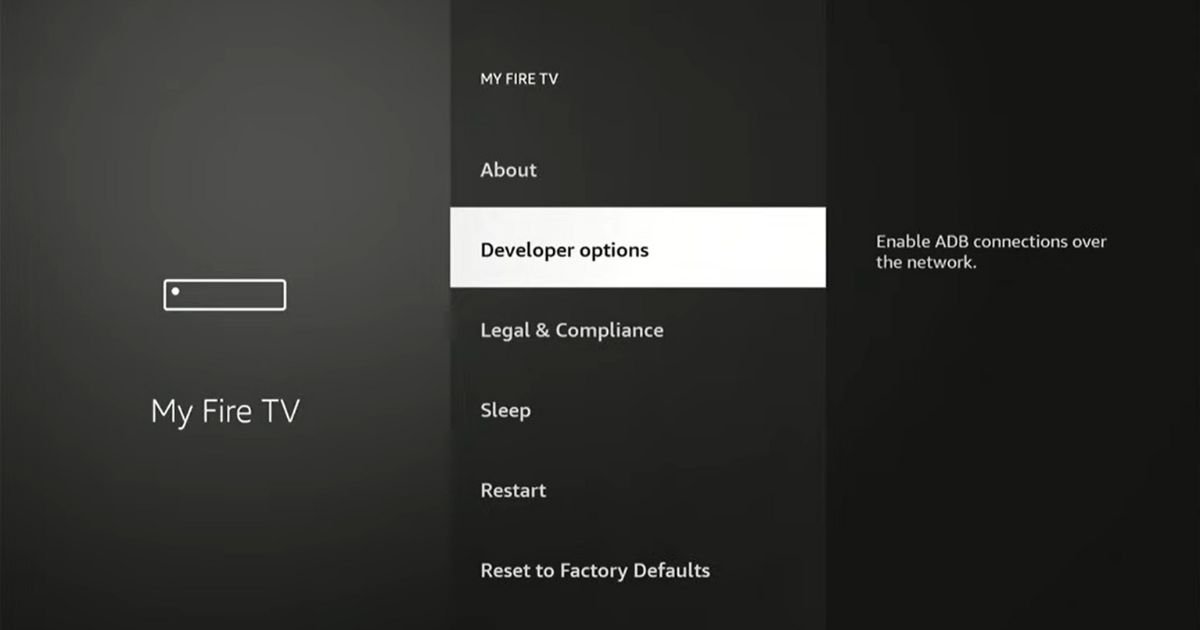
- Highlight your device’s name (e.g., Fire TV Stick 4K Max) and press the Select button on your remote 7 times quickly. A message will confirm, “You are now a developer!“
Step 2: Install the Downloader App
The Downloader app is the secure gateway for sideloading the APK file.
-
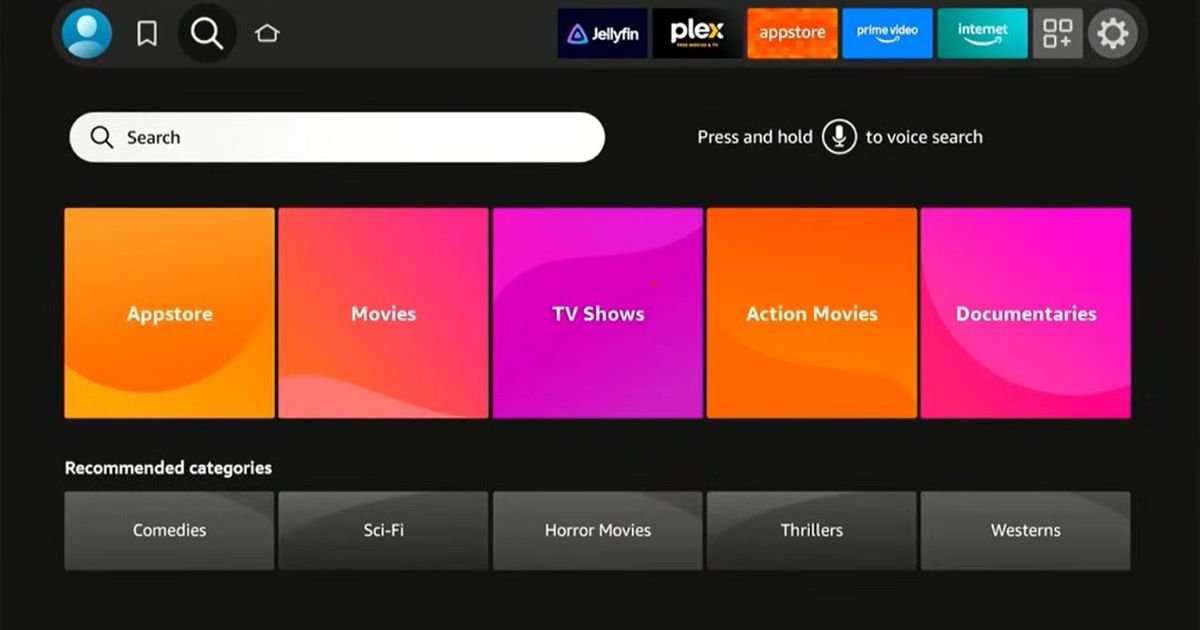
Return to the FireStick home screen and click the Find icon (🔍).
-
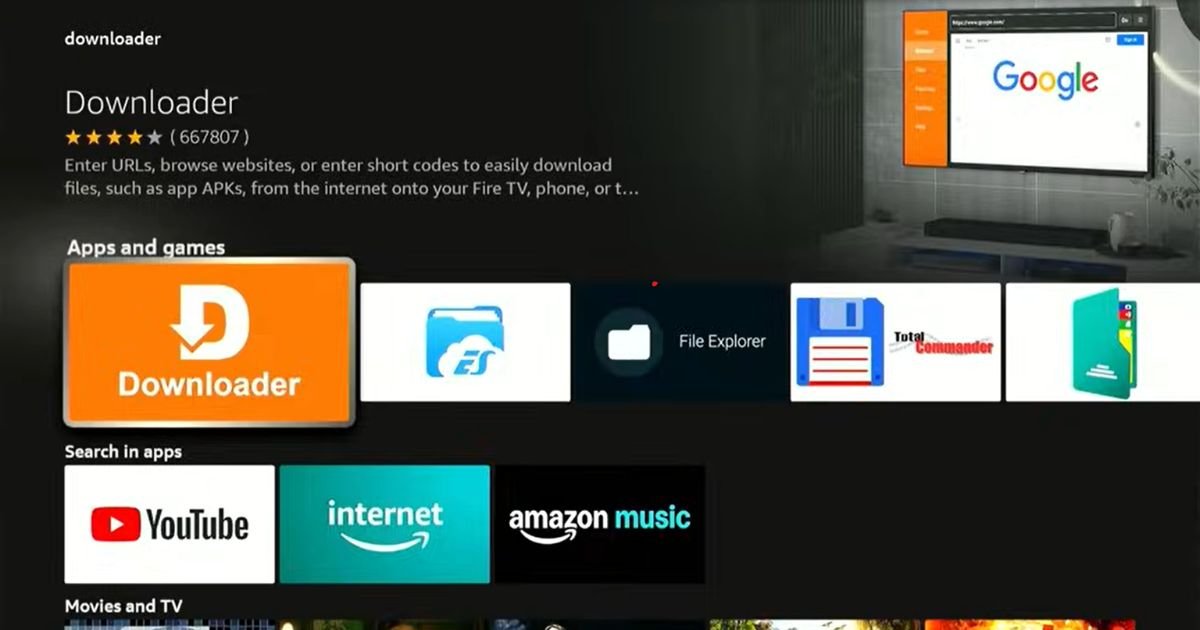
Select the Search field and type “Downloader.” Select the app icon (it is an orange icon) when it appears.
-
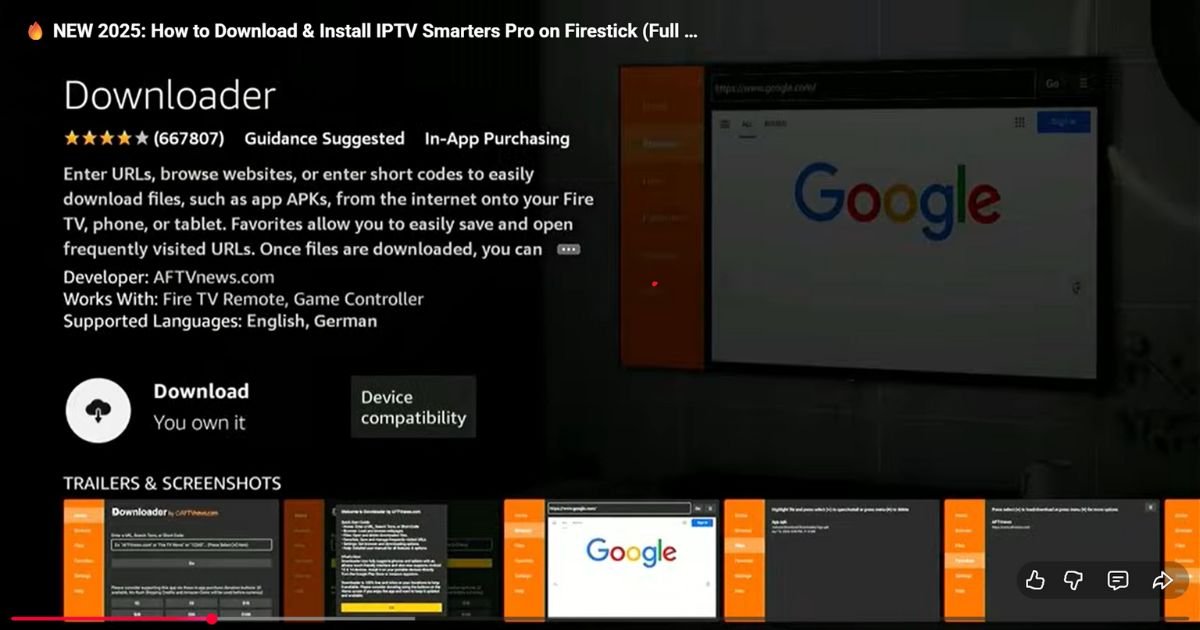
Click Download or Get to install the app.
-
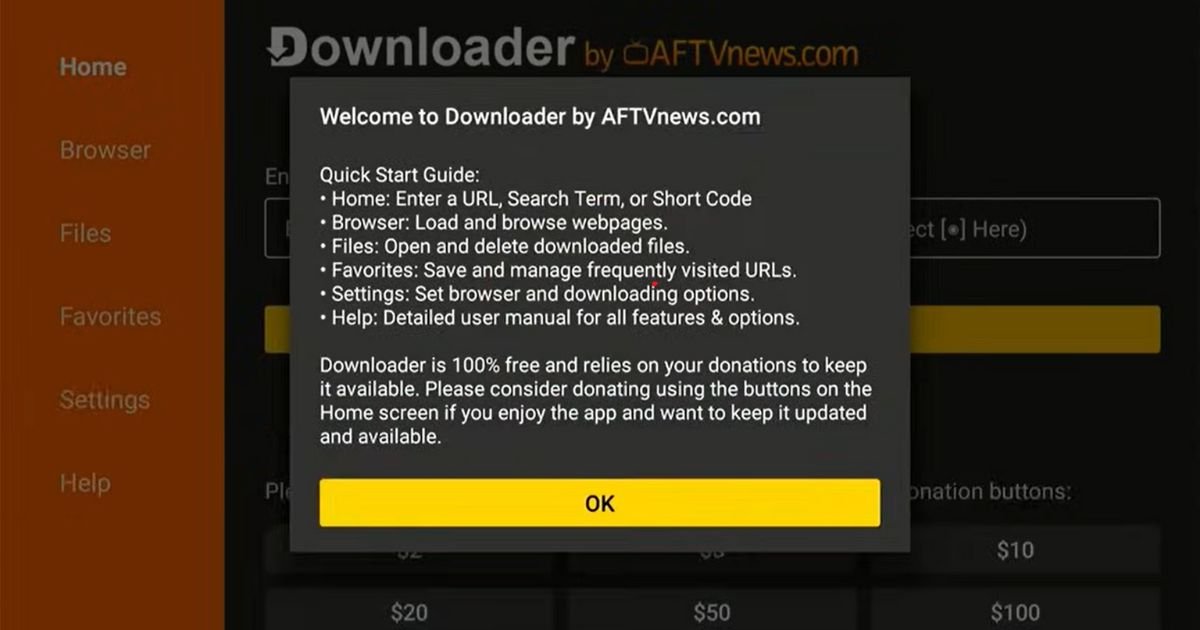
Once installed, open the Downloader app and click Allow and OK to dismiss the startup prompts.
Step 3: Turn On Apps from Unknown Sources
Now that the Downloader app is installed, we can grant it permission.
-
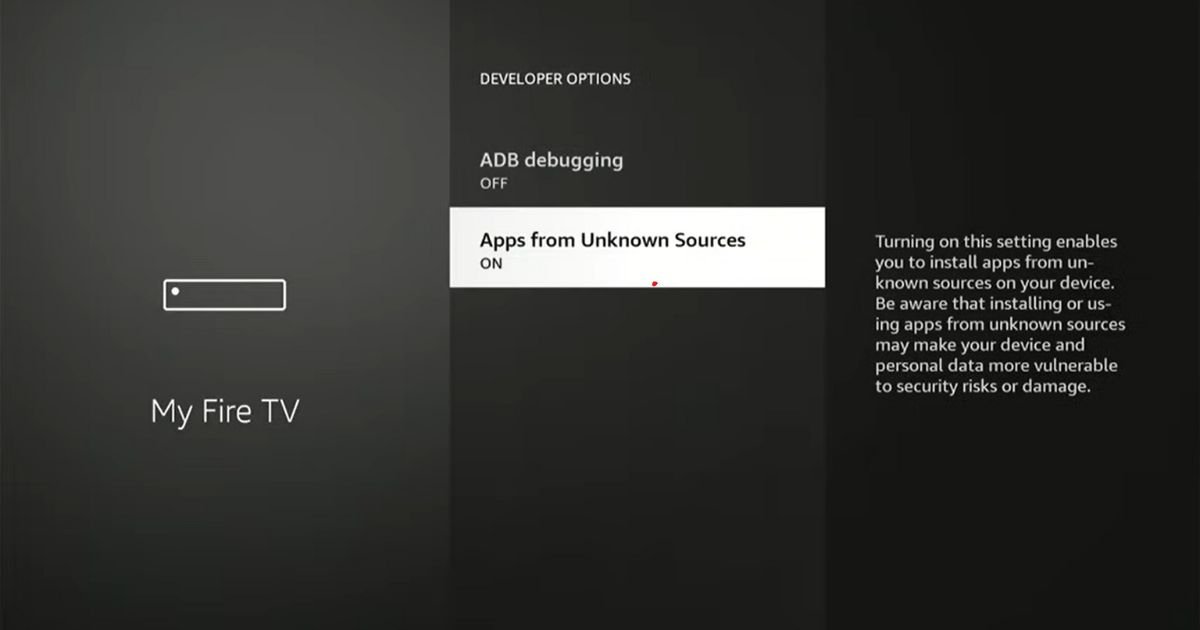
Go back to Settings > My Fire TV > Developer Options.
-
Select Install Unknown Apps.
-
Find the Downloader app in the list and press the Select button to toggle the setting to ON.
Part 2: Essential Privacy Step (Before You Install IPTV Smarters Pro on FireStick)
This essential step is often overlooked, but the video emphasizes that it is critical when you install IPTV Smarters Pro on FireStick and begin streaming any third-party content. A VPN protects your identity and ensures anonymity from prying eyes (like your Internet Service Provider).
We will use the Downloader app to install the recommended IPVanish VPN first.
-
Open the Downloader app.
-
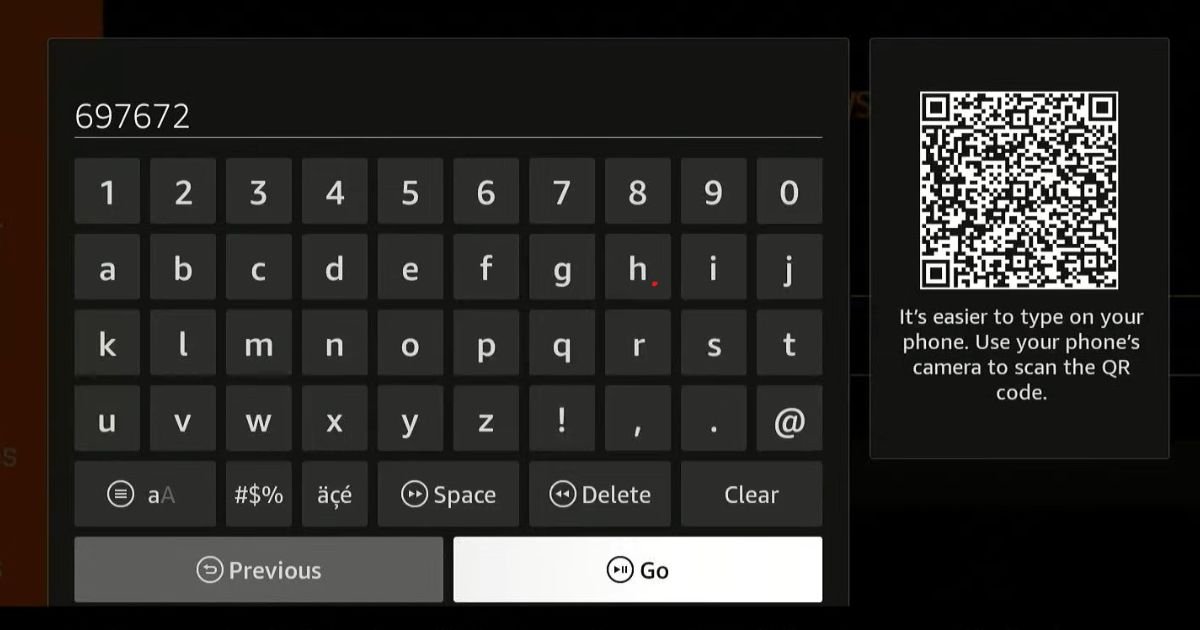
Click the URL box and enter the following code:
697672. -
Click GO. This link will automatically redirect and begin downloading the IPVanish APK.
-
Once the download is complete, click Install.
-
After the installation finishes, click DONE and then select Delete twice to remove the installation file.
Part 3: The Sideloading Process for IPTV Smarters Pro
Now for the main event: learning the exact process to install IPTV Smarters Pro on FireStick using the dedicated code.
Step 1: Enter the Smarters Pro Download Code
-
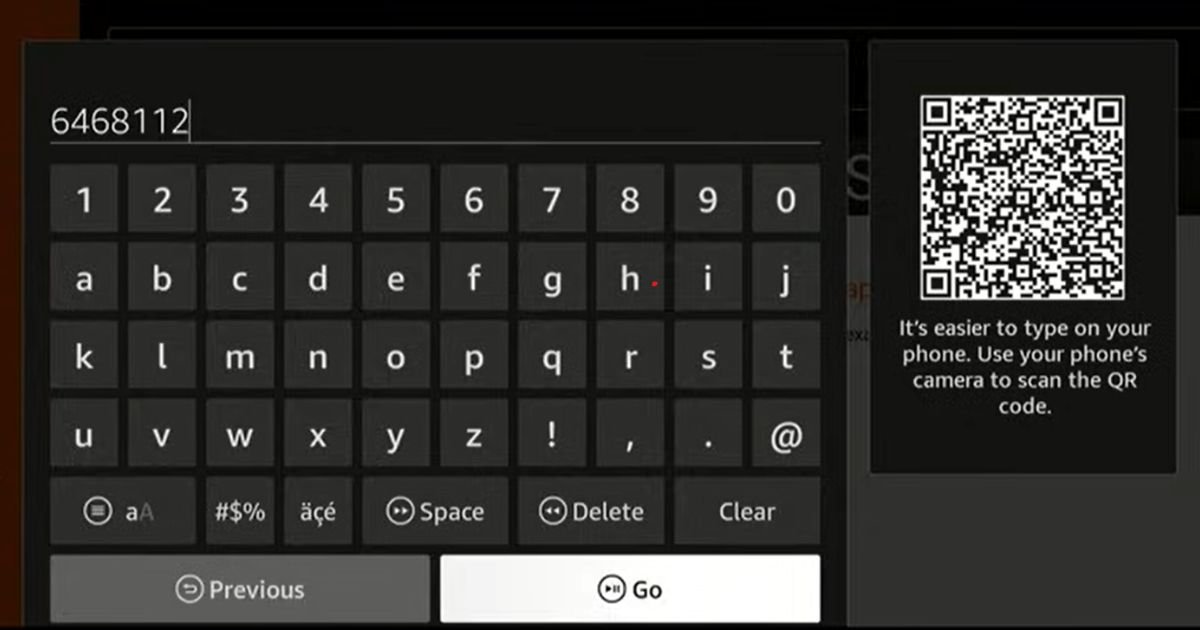
In the Downloader app, click the URL box again and press Clear to remove the previous code.
-
Enter the following new code, which points to the official, stable version of the app:
6468112. -
Click GO. This simple command is the quickest way to complete the process for how to install IPTV Smarters Pro on FireStick.
Step 2: Download, Install, and Clean Up
-
The app will begin downloading. If you see a Cloudflare verification, simply wait for it to verify or click the Verify button.
-
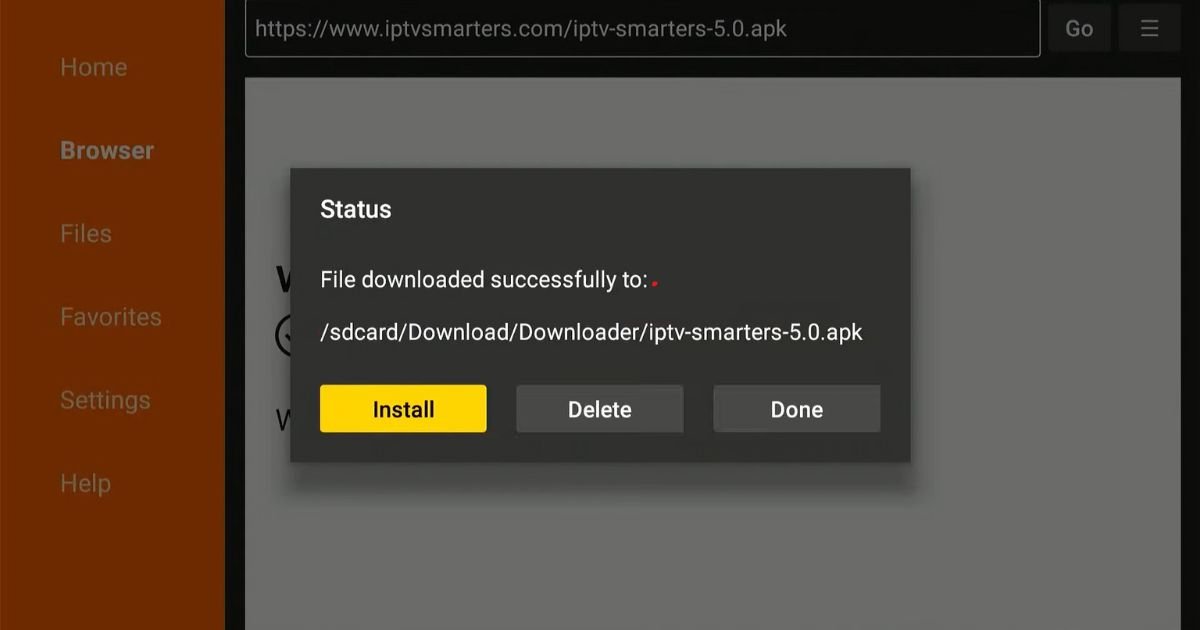
Once the download finishes, the installation screen will pop up. Click Install.
-
Wait for the “App Installed” confirmation.
-
Crucially, click DONE, not OPEN.
-
On the next prompt, click Delete, and then Delete again, to remove the APK file and conserve your FireStick’s storage space.
Part 4: Launching and First-Time Use
To ensure all your efforts to install IPTV Smarters Pro on FireStick were worth it, let’s launch the app and get connected.
-
Go to the FireStick home screen, navigate to your apps, and move both IPVanish VPN and IPTV Smarters Pro to the front of your app list for easy access.
-
VERY IMPORTANT: Always open and connect to your IPVanish VPN first. This ensures your activity is completely anonymous.
-
Once the VPN is connected, launch IPTV Smarters Pro.
-
On the initial setup screen, select TV and then Save .
-
Accept the license agreement.
-
You will now be at the login screen where you can enter the credentials from your subscribed media service.
Expanding Your Setup to Other Devices
While the FireStick is a powerhouse, you likely have other screens in your home. IPTV Smarters Pro is highly flexible and works across various operating systems. Below are the condensed steps for other popular platforms.
1. How to Setup IPTV Smarters Pro on Android TV
If you own an Nvidia Shield, Mi Box, or a Sony/Hisense TV running the Android OS, the process is incredibly straightforward because the app is often available directly.
-
The Easy Way: Open the Google Play Store on your device and search for “IPTV Smarters Pro.”
-
The Sideload Way: If it’s restricted in your region, use the Downloader app method exactly as described in the FireStick section above.
-
Why Android? It handles High-definition (HD) streaming and 4K IPTV content with extreme stability.
Ready for the full walkthrough? Follow our complete guide to setup IPTV Smarters Pro on Android TV here.
2. Install IPTV Smarters Pro on Google TV (Chromecast)
The newer Google TV interface (found on the latest Chromecasts) requires you to “Unlock Developer Options” similarly to the FireStick before you can sideload.
-
Enable Sideloading: Go to Settings > System > About and click “Android TV OS Build” 7 times.
-
Install Downloader: Grab the Downloader app from the Play Store and use the same codes provided in Part 3 of this guide.
-
Pro Tip: Google TV offers a very clean interface for managing your iptv subscriptions and EPG (Electronic Program Guide).
Need step-by-step images? Visit our deep-dive on how to install IPTV Smarters Pro on Google TV.
3. Install IPTV Smarters Pro on Samsung Smart TV
Samsung is unique because it uses Samsung Tizen OS instead of Android. This means you cannot use the “Downloader” method or APK files directly.
-
The Official App: Search the Samsung App Store for “Smarters Player Pro”. This is the official version tailored specifically for Samsung’s system.
-
The Best Alternative: If the app is missing from your local store, many users prefer using a dedicated iptv box or a FireStick plugged into their Samsung TV to get the full feature set.
-
Setup: Once installed, simply log in using your Xtream Codes API to start watching.
Samsung users, read this first: Check out the definitive guide to IPTV Smarters Pro on Samsung Smart TV.