Are you lucky enough to own a high-performance TCL TV but struggling to find your favorite media player in the store? You aren’t alone. Many users want to unlock the full potential of their screen by using IPTV Smarters Pro, but the setup isn’t always obvious. Whether you have a TCL Android TV or the newer TCL Google TV, this guide is your “secret weapon” to getting everything running perfectly.
As the #1 IPTV provider resource, we know that a disorganized channel list or a missing app can ruin your weekend plans. In this 2026 update, we will show you the exact setup of IPTV Smarters on TCL TV so you can start enjoying your iptv subscriptions in record time. From bypassing restrictions to fixing that annoying buffering issue on tcl tv, we’ve got it all covered.
Why Choose IPTV Smarters Pro for your TCL TV?
Before we dive into the “how-to,” let’s talk about the “why.” IPTV Smarters (often referred to as IPTV Smarters Pro) is widely considered the best IPTV provider interface on the market. It transforms your TCL TV into a cinematic hub, allowing you to manage multiple iptv plans with a professional, easy-to-navigate UI.
However, since this is a third-party app, you won’t always find it with a simple search. You need to use a method called “sideloading” to download IPTV Smarters on TCL TV.
Step-by-Step: Setup of IPTV Smarters on TCL TV
Following the latest technical procedures, here is the foolproof way to get your IPTV Smarters player active.
Phase 1: Unlock Your TCL TV (Developer Mode)
TCL TVs have built-in security that blocks apps from unknown sources. We need to unlock this first:
-
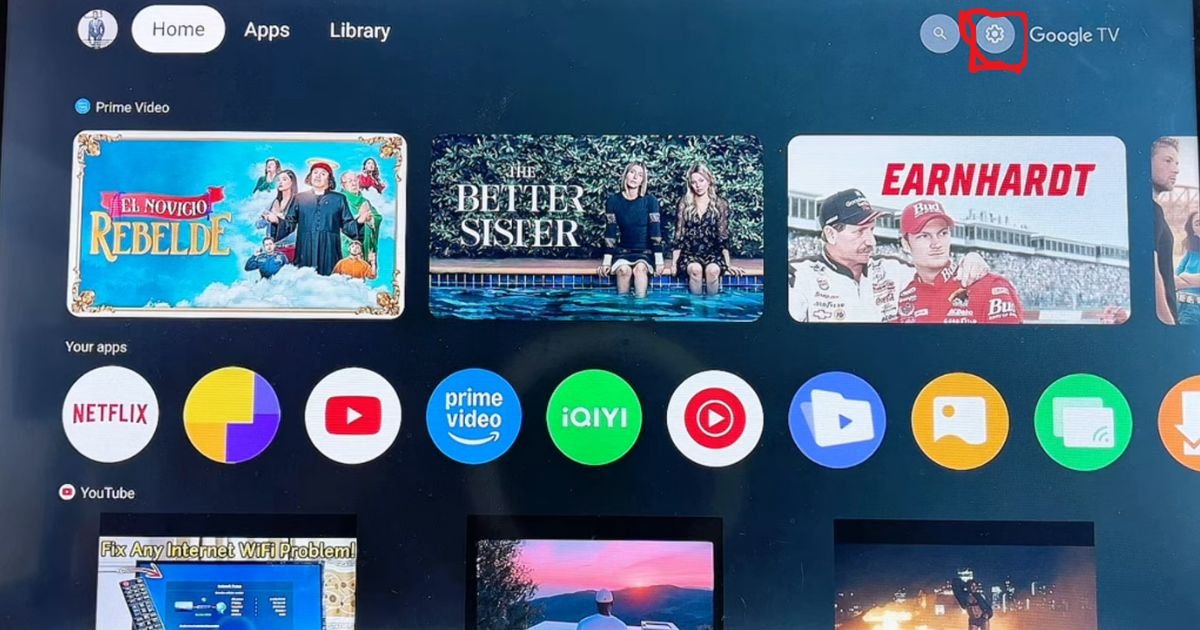
Go to Settings (the gear icon) at the top right of your home screen.
-
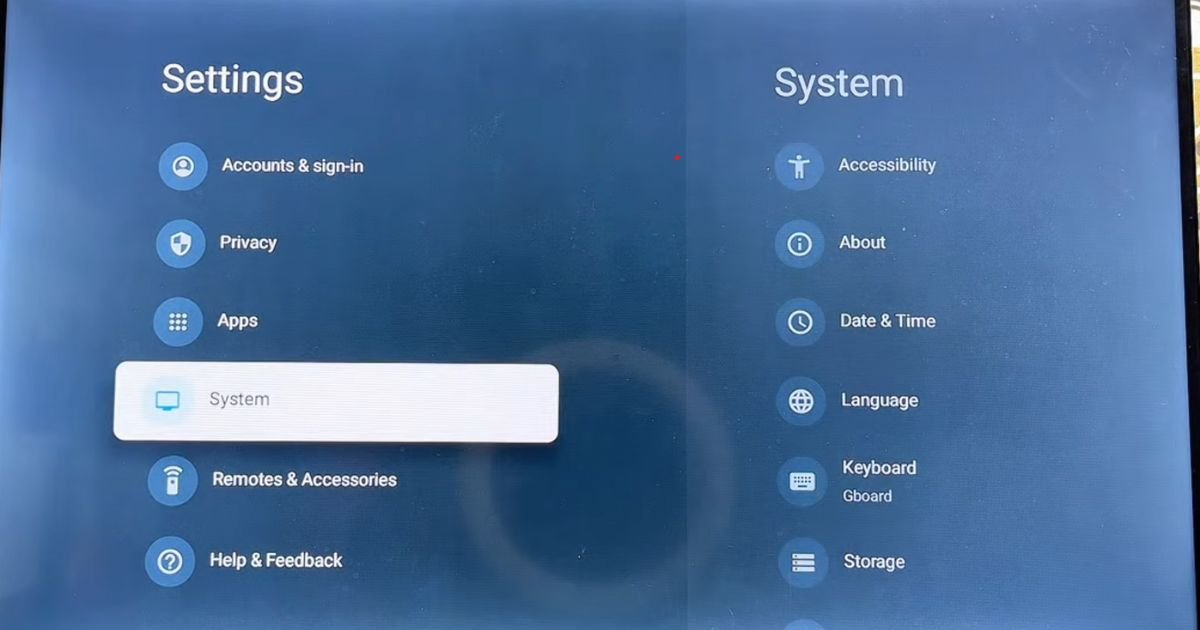
Navigate to System > About.
-
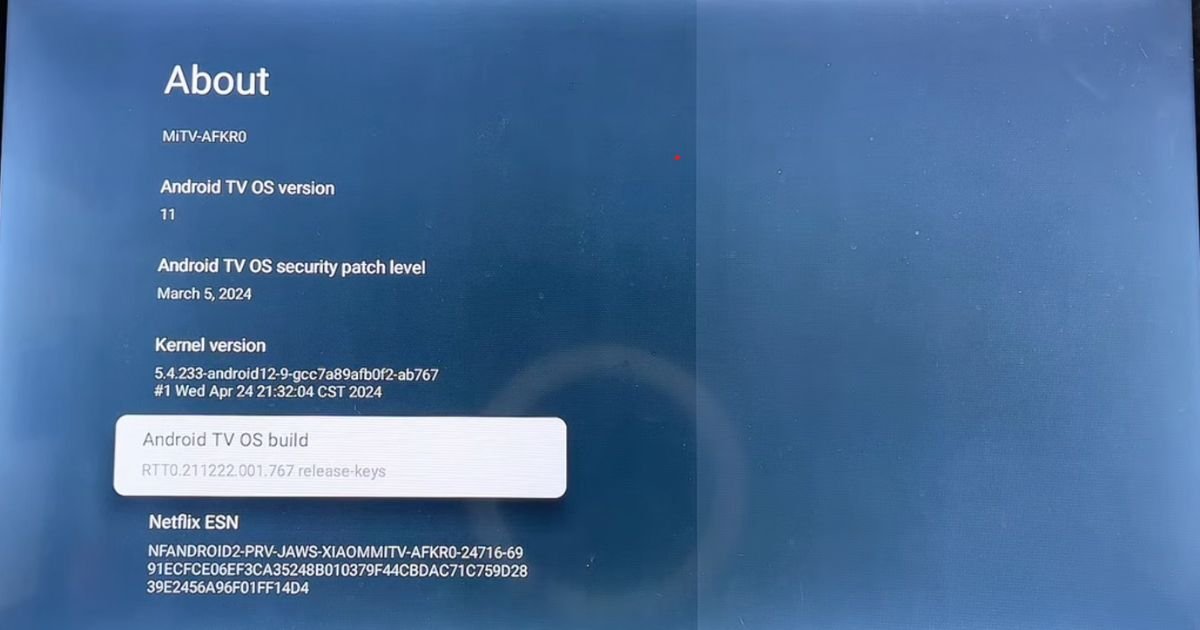
Scroll down to the Android TV OS Build option.
-
The Secret Step: Press the “OK” button on your remote 7 times quickly. A message will pop up saying, “You are now a developer!”.
Phase 2: Grant Permissions to the Downloader App
Now that you are a developer, you need a tool to fetch the IPTV Smarters Pro file:
-
Go to the Google Play Store on your TV and install the Downloader app (the orange icon).
-
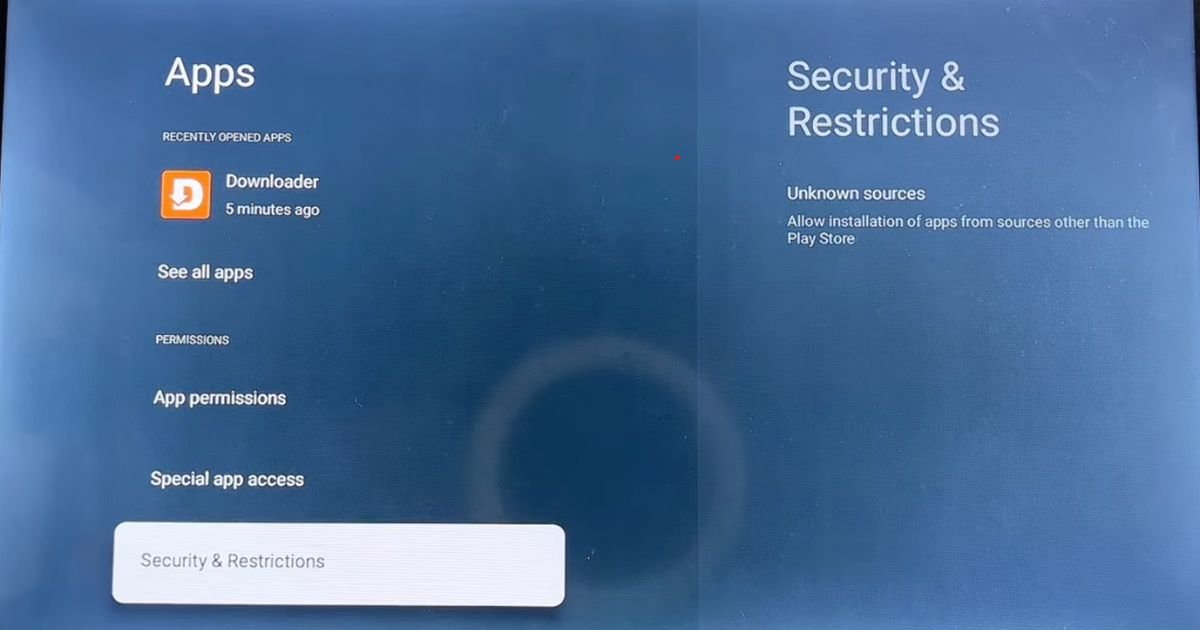
Go back to Settings > Apps > Security & Restrictions.
-
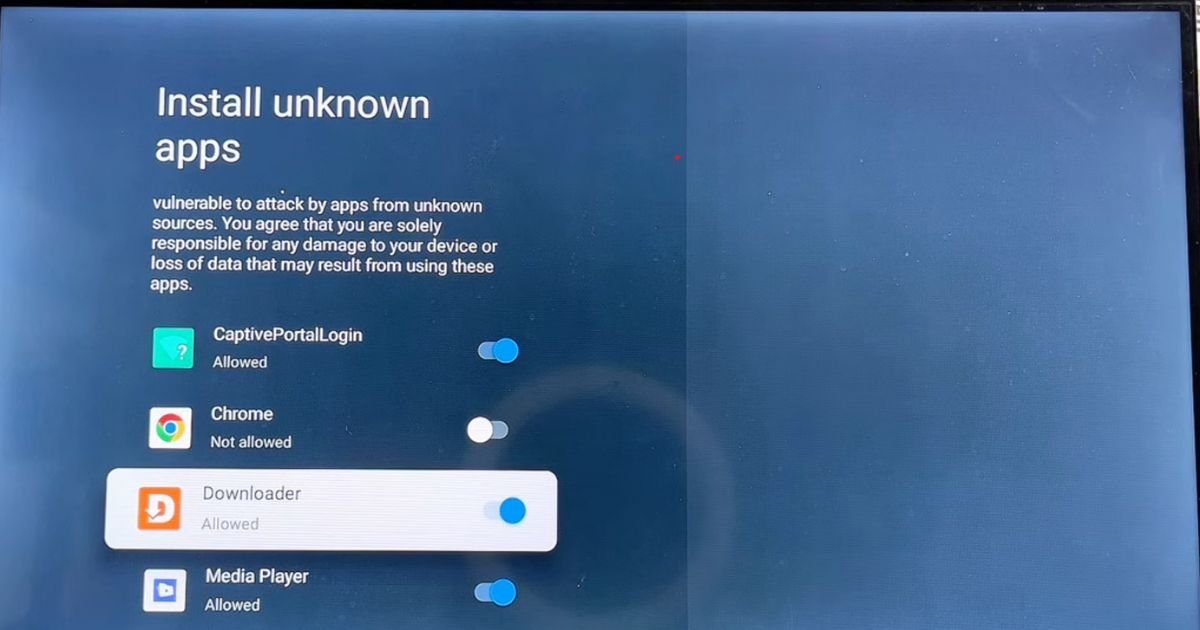
Select Unknown Sources and toggle the switch to ON specifically for the Downloader app.
Phase 3: Download and Install IPTV Smarters Pro
-
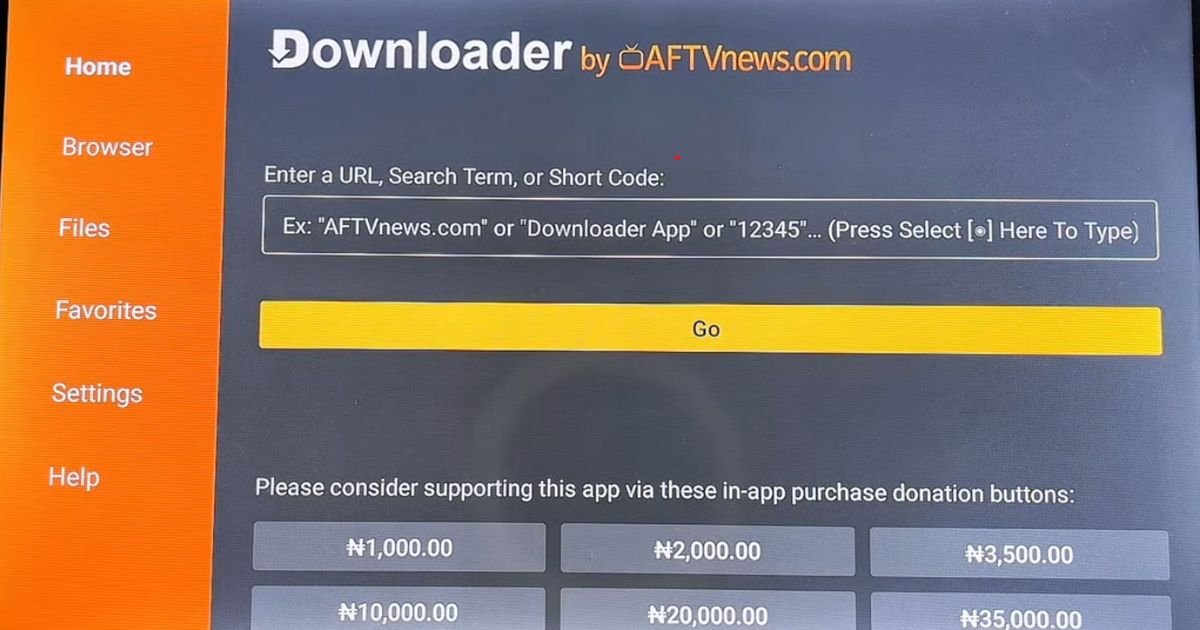
Open the Downloader app and go to the Browser tab.
-
In the URL field, type the dedicated code for the official IPTV Smarters Pro APK (or search for it directly).
-
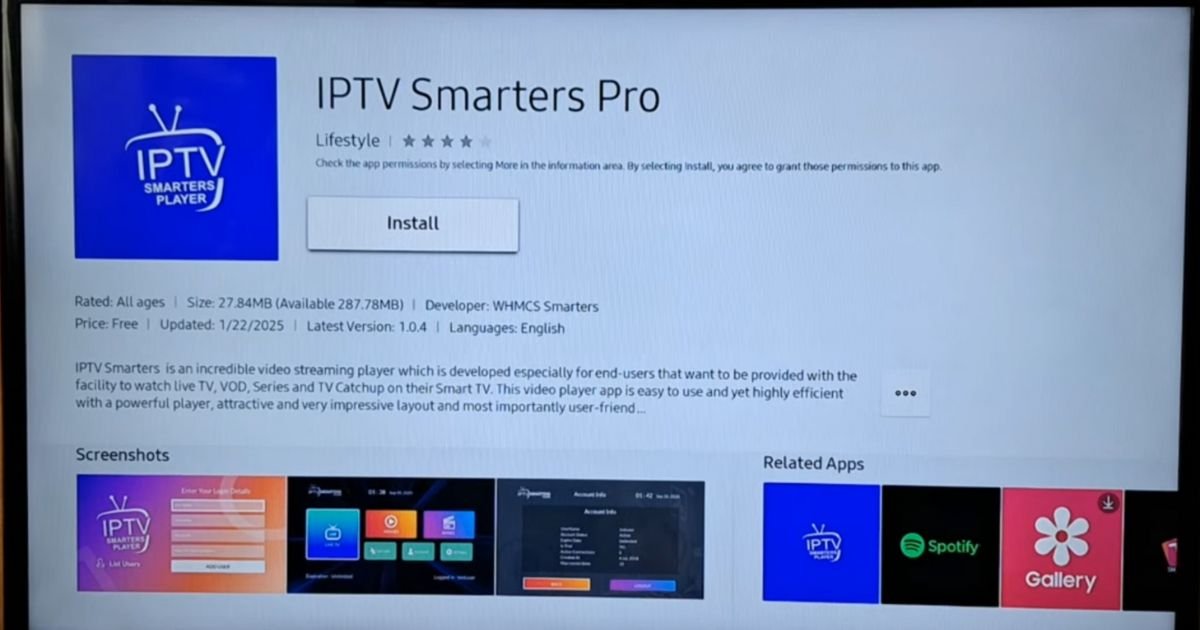
Once the download finishes, the TV will ask if you want to install it. Click Install.
-
After it finishes, you can open it directly or find it under Settings > Apps > See all apps.
Optimizing Your Experience: Buffering & Subscriptions
Once you have completed the setup of IPTV Smarters on TCL TV, you want to make sure the stream never stops.
-
Fixing Buffering: If you encounter a buffering issue on tcl tv, ensure you are using a wired Ethernet connection. Additionally, using a VPN can often bypass ISP throttling, which is the leading cause of lag during live sports.
-
Choosing the Best IPTV Provider: Not all iptv plans are created equal. Look for a subscription that offers “Anti-Freeze Technology” to ensure your 4K and 8K streams remain crystal clear.
-
Inputting Credentials: Use the Xtream Codes API method within the app. It is much more stable than M3U links and automatically loads your EPG (Electronic Program Guide).
Check Out Our Other Installation Guides
We are dedicated to helping you stream on every device you own. If you have other TVs in your home, don’t miss our detailed tutorials for those platforms:
-
Firestick Users: How to Install IPTV Smarters Pro on Firestick
-
Google TV / Chromecast: Official Guide for Google TV Setup
-
Samsung Smart TV: How to get Smarters on Tizen OS
Final Verdict
Learning how to download IPTV Smarters on TCL TV is the best move you can make for your home theater in 2026. With the right iptv plans and this professional setup, you’ll never look at cable TV the same way again.
Ready to start? Open your TCL settings now and follow Phase 1 to begin!
To help you round out your guide with a high-converting FAQ section, here are the professional answers to your specific questions. These are designed to be clear, SEO-friendly, and naturally incorporate your keywords.
Frequently Asked Questions (FAQ)
1. Does IPTV work on TCL TV?
Yes, absolutely! IPTV works perfectly on TCL TV models, whether they run on the Android TV or Google TV operating systems. To enjoy a seamless experience with live channels and VOD, you simply need a high-quality media player like IPTV Smarters Pro and a valid subscription from a reliable #1 IPTV provider.
2. How to download IPTV Smarters Pro on smart TV?
The easiest way to download IPTV Smarters on TCL TV is through the official Google Play Store. If the app is restricted in your region, you can use the “sideloading” method:
-
Install the Downloader app from the store.
-
Enable “Unknown Sources” in your TV settings.
-
Enter the official APK download code to install the player directly.
3. How to install APK on TCL smart TV?
To install an APK file on your TCL TV, you must first enable Developer Mode by clicking the “Android TV OS Build” 7 times in the settings. Once unlocked, use an app like Downloader or a USB drive to transfer and open the APK file. This is the proven method to get third-party apps that aren’t available in the native store.
4. Can I install apps on TCL smart TV?
Yes, you can. TCL Smart TVs allow you to install thousands of apps directly from the Google Play Store. Furthermore, TCL’s open-platform nature (Android/Google TV) gives you the freedom to install third-party applications like IPTV Smarters Pro by using the sideloading process, ensuring you never miss out on the best IPTV provider content.