The TCL Google TV has become one of the most popular choices for home theaters in 2026, offering a seamless interface and incredible 4K HDR performance. However, to truly unlock its potential and ditch expensive cable bills, you need to install the world’s most versatile media player.
Follow this expert guide to master the TCL Google TV IPTV setup and start streaming your favorite USA content in minutes.
Operating on the latest Google TV OS, TCL televisions offer a much more open ecosystem than traditional smart TVs. This allows iptv smarters pro to run with full hardware acceleration, giving you a lag-free experience whether you’re watching live sports or the latest 2026 cinematic releases.
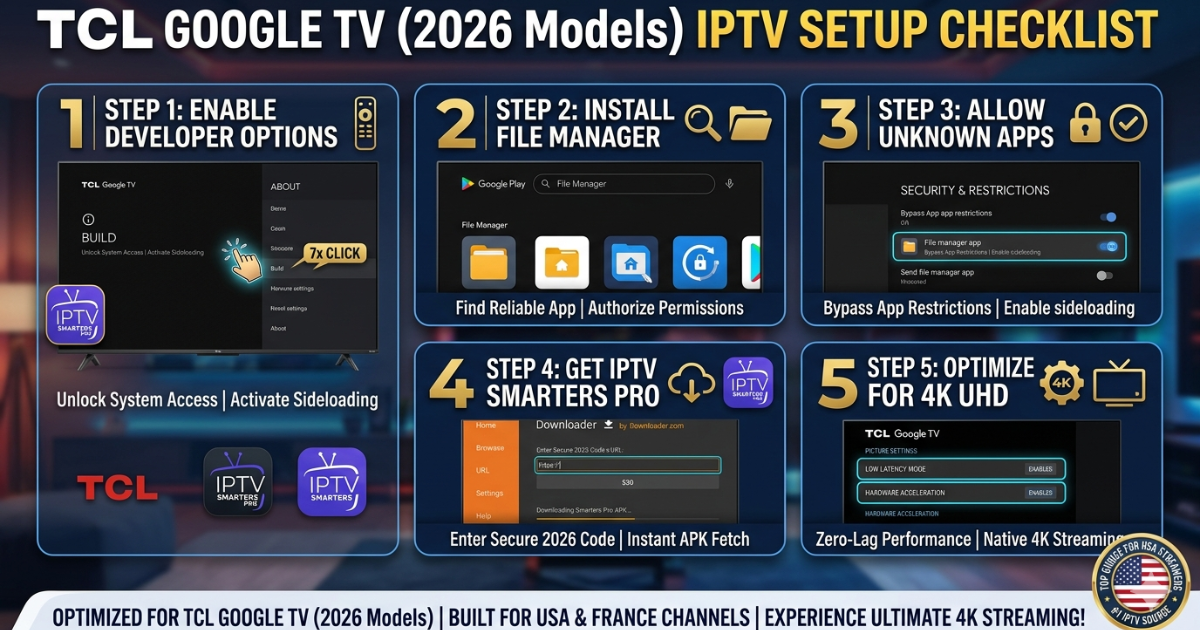
Step 1: Prepare Your TCL Google TV
Since we are aiming for the highest quality 4K stream, we need to ensure your TCL Google TV is ready to accept our optimized 2026 player.
-
On your Google TV home screen, go to Settings > System > About.
-
Scroll down to Android TV OS Build and click it 7 times until a message says “You are now a developer.”
-
Go back to Settings > Apps > Security & Restrictions > Unknown Sources.
-
Toggle this ON for the browser or file manager you plan to use.
Step 2: Installation via Google Play Store
The easiest way to get started is directly through the official store.
-
Open the Play Store on your TCL TV.
-
Search for “IPTV Smarters Pro.”
-
Select Install.
-
Pro Tip: If you are a power user looking for the most advanced features, you can also sideload our specialized 2026 APK using the same method we use to sideload IPTV Smarters on Insignia Fire TV.
Step 3: Configuring for USA Sports & News
Once installed, it’s time to load your content. To get the best results on your TCL’s mini-LED or QLED panel, you need a high-bitrate source.
-
Live Sports: Use your credentials to watch NFL on IPTV USA or catch the English Premier League in native 60FPS.
-
News & Local Hub: Setting up your M3U playlist URL for USA channels allows you to watch local USA news on IPTV from any state.
-
International Viewers: If you are looking for European feeds or specialized French cinema, refer to the high-speed server configurations at IPTV Smarters France.
2026 USA Premium Subscription Plans
To get the most out of your TCL Google TV, choose a plan that supports 4K UHD and Multi-Screen functionality.
| Plan Tier | Duration | Connections | Key Features | Best For |
| Starter | 1 Month | 1 Device | 20k+ Channels / SD & HD | Casual News |
| Standard | 6 Months | 2 Devices | 4K UHD / Anti-Freeze / EPG | Movie Lovers 2026 |
| Premium | 12 Months | 3 Devices | Elite Sports Pack / 24-7 Support | NFL & PPV Fights |
| Family | 24 Months | 5 Devices | Full VOD Library / Multi-Screen | Full Households |
Why TCL is Perfect for IPTV Smarters Pro
The TCL Google TV (specifically the 2026 QM8 and Q7 series) features a dedicated game bar and “low latency mode” that works wonders for a live sports IPTV subscription. It reduces the delay between the broadcast and your screen, which is vital for PPV fights.
If you’re coming from a different device, you’ll find the TCL interface much snappier than the Firestick 4K Max and nearly as powerful as the Nvidia Shield TV Pro.
Troubleshooting Common TCL Setup Issues
-
Playback Errors: If you encounter a “black screen,” check our IPTV Smarters Pro errors top 8 list for a quick fix.
-
Audio Out of Sync: Ensure your TCL’s “Digital Audio Out” is set to “Pass-through” if you are using an external soundbar.
-
VOD Loading: For movie lovers in 2026, if posters aren’t loading, clear the app cache in the Google TV app settings.
Conclusion: The Future of Home Entertainment
Installing the player on your TCL Google TV is the final step in creating a professional-grade home cinema. You now have access to global news, elite sports, and 4K movies without the clutter of extra wires or boxes.
Now that your TCL Google TV is fully configured with our 2026 tutorial, don’t let a low-quality stream ruin your hardware’s potential. Power your screen with the No. 1 M3U playlist URL for USA channels and enjoy the ultimate 4K experience today!
CLAIM YOUR 50% DISCOUNT ON PREMIUM PLANS HERE →
Frequently Asked Questions: TCL Google TV IPTV Setup
1. Why is my TCL Google TV not showing the “Developer Options”?
Google TV hides this menu to protect system files. To enable it, go to Settings > System > About and click on “Android TV OS Build” exactly 7 times. You will see a toast notification saying “You are now a developer!” This is a mandatory step for anyone looking to sideload IPTV Smarters on Insignia Fire TV or TCL models.
2. Can I watch 4K Sports without buffering on TCL?
Yes, TCL’s 2026 QM8 and Q7 series are built for high-speed streaming. However, buffering is often caused by the TV’s Wi-Fi chip. For the best experience when you watch NFL on IPTV USA, we recommend using a USB-to-Ethernet adapter or a 5GHz Wi-Fi connection.
3. How do I fix the “Invalid Details” error on TCL Google TV?
This error usually means there is a typo in your Xtream Codes API. Ensure your Server URL includes the “http://” prefix. If it still fails, check our IPTV Smarters Pro login issues fix to see if your M3U playlist URL for USA channels has been temporarily blocked by your ISP.
4. Is IPTV Smarters Pro free for TCL users?
The app itself can be downloaded for free, but to access premium USA channels, live sports, and VOD cinema, you need an active live sports IPTV subscription.